Color Calibration in Hybrid Workstations: Matching High-Refresh Gaming Displays with Professional Dell UltraSharp Monitors
By Eli Nolan | Published October 6, 2026
Step into the studio of any modern creative technologist, game developer, video colorist, or visual artist in 2026, and you will almost certainly find the definitive "hybrid workstation" configuration. Sitting side-by-side on heavy-duty monitor arms are two display heavyweights: an ultra-fast high-refresh gaming monitor—such as a 32-inch 4K 240Hz Gen 3 QD-OLED like the ASUS ROG Swift OLED PG32UCDM—paired directly with a color-critical reference workhorse like the Dell UltraSharp U3223QE 4K IPS Black.
On paper, this pairing is the holy grail of desktop real estate. The high-refresh OLED delivers instantaneous 0.03ms pixel response times, tearing-free 240Hz motion fluidity for high-frame-rate rendering, Unreal Engine 5 viewport navigation, and after-hours competitive gaming. Meanwhile, the Dell UltraSharp IPS Black panel provides an immutable, burn-in-proof reference canvas featuring a static 2,000:1 contrast ratio, standard vertical RGB subpixel geometry for razor-sharp typography, and rock-solid sustained luminance across 10-hour grading sessions.
Yet, the moment you boot into your operating system, the dream collapses into visual chaos.
Drag a window from Adobe Photoshop, DaVinci Resolve, Figma, or even Google Chrome across the bezel boundary, and the chromatic disconnect is instant and jarring. Natural skin tones that appear balanced and peachy on the Dell UltraSharp suddenly mutate into an oversaturated, neon-orange sunburn on the gaming display. Neutral 50% UI grays swing from a clinical, cool blue-green tint on the gaming screen to a warm amber on the IPS Black. Pure white web pages clash violently: one screen glows at an uncalibrated 7200K ice-blue gaming preset while the other rests at a factory-calibrated 6500K D65 target.
Worse yet, attempting to fix this discrepancy by "eyeballing" the On-Screen Display (OSD) color sliders is an exercise in futility. Human vision relies on chromatic adaptation—your visual cortex dynamically shifts its perceived white point based on the strongest ambient and local luminance sources. As soon as your eyes dart from one panel to the other, your brain's internal color balance recalibrates on the fly, guaranteeing that any manual OSD tweak you make will be fundamentally flawed.
To eliminate this discord and achieve true, seamless color parity across disparate display technologies, you must abandon guesswork. You need an uncompromising, hardware-calibrated color pipeline rooted in color science, spectral profiling, and precise mathematical targets. In this masterclass guide, we walk you through the physics of tristimulus measurement, the spectral challenges of wide-gamut OLEDs, metameric failure, and the exact step-by-step protocol to calibrate high-refresh gaming displays and professional Dell UltraSharp monitors to an identical visual baseline.
Quick Take: Key Highlights
- The Root of Disparity: High-refresh gaming monitors ship out of the box with aggressive wide-gamut native modes (spanning 135%+ sRGB volume) and cool 7000K–7500K color temperatures designed for eye-catching showroom pop. Placing them next to a factory-calibrated D65 Dell UltraSharp makes color-critical cross-screen work impossible without hardware profiling.
- The Colorimeter Dilemma: Conventional tristimulus colorimeters with standard generic filters cannot accurately measure modern QD-OLEDs or WOLEDs. Narrow spectral emission spikes (sub-30nm FWHM on quantum-dot displays) cause severe chromaticity measurement errors unless corrected with accurate Colorimeter Correction Spectral Set (CCSS/EDR) matrices.
- Sensor Saturation Limits: High-luminance HDR monitors and peak-brightness gaming panels easily saturate older colorimeters. Using a modern high-luminance probe like the Calibrite Display Plus HL (certified up to 10,000 nits) ensures linear measurement across the entire luminance curve.
- The Phenomenon of Metameric Failure: Even when an OLED and an IPS Black display are calibrated to identical mathematical CIE 1931 $xy$ coordinates ($x=0.3127, y=0.3290$), differences in human ocular cone sensitivity versus the standardized mathematical observer can cause the OLED to look slightly greenish-magenta. Perceptual visual matching resolves this metameric divergence.
- Hardware OSD Gain First, Software LUT Second: Always adjust the monitor's physical RGB gain controls in the hardware scaler before running automated profile passes. Correcting white balance inside the display hardware preserves the GPU’s 10-bit Video LUT (vcgt) registers and prevents digital quantization banding.
- The Universal Standard Baseline: Standardize both displays to Illuminant D65 ($6504\text{K}$), pure Gamma 2.2 (or BT.1886 for dedicated video suites), and an identical white point luminance of $120\text{ cd/m}^2$ (or $140\text{ cd/m}^2$ for bright studios) to eliminate pupil dilation shock when glancing between screens.
The Physics of Colorimeters, Spectroradiometers, and Panel Topologies
Achieving identical color reproduction across two fundamentally different display technologies requires understanding how measuring instruments see light versus how human eyes perceive it.
Optical Filter Integration
Uses three or four photodiode channels coated with optical absorption filters designed to match the CIE 1931 Standard Observer curves. Fast and sensitive in dark tones, but requires spectral matrices for narrow-band emitters.
Diffraction Grating Analysis
Disperses incident photons across an optical diffraction grating onto a linear CCD array, measuring absolute spectral power distributions (SPD) in 1nm to 5nm increments. Mathematically immune to backlight spectra, but slow and costly.
CCSS / EDR Profile Bridge
Applies a 3x3 transformation matrix derived from reference spectroradiometer measurements to calibrate the colorimeter's broad optical filter response against the exact emission spikes of QD-OLED or W-LED.
Tristimulus Colorimeters vs. Spectrophotometers
In display calibration, measuring probes fall into two distinct architectures:
- Tristimulus Colorimeters (e.g., Calibrite Display Plus HL, Datacolor SpyderX Pro): These devices direct light through optical absorption filters onto silicon photodiodes. The physical filters are manufactured to approximate the CIE 1931 $2^\circ$ Standard Observer color-matching functions: $\bar{x}(\lambda)$, $\bar{y}(\lambda)$, and $\bar{z}(\lambda)$. The integrated electrical current from each photodiode represents the tristimulus values $X$, $Y$, and $Z$, which are then converted into chromaticity coordinates $(x, y)$ and luminance $Y$ ($cd/m^2$).
- Spectrophotometers & Spectroradiometers (e.g., X-Rite i1Pro 3, Photo Research PR-670, Colorimetry Research CR-250): Rather than using three fixed broad filters, a spectroradiometer splits incoming light via an optical diffraction grating, measuring the exact Spectral Power Distribution (SPD) of the display across hundreds of discrete wavelength bins (typically 380 nm to 780 nm in 1 nm to 4 nm increments).
While spectroradiometers provide absolute physical ground truth, high-end reference models cost between $2,000 and $25,000, and standard entry-level spectrophotometers struggle with integration times and sensor noise in near-black regions below 0.05 nits. Tristimulus colorimeters, by contrast, offer exceptional low-light sensitivity, high speed, and affordability. However, they rely on a critical assumption: that the light hitting their optical filters matches the spectral characteristics the filters were tuned for.
The Spectral Dilemma: QD-OLED, WOLED, and IPS Black
This is where dual-monitor hybrid workstations encounter a major physical stumbling block. The backlight chemistry of a professional IPS Black display like the Dell UltraSharp U3223QE is completely different from the self-emissive organic stacks of modern gaming panels:
- IPS Black (W-LED with KSF/PFS Phosphor): The Dell U3223QE utilizes a blue LED excitation diode driving a potassium fluorosilicate (KSF/PFS) phosphor layer. This produces a broad, smooth spectral distribution across the green and yellow spectrum, alongside discrete red emission peaks, covering 98% of the DCI-P3 color space.
- Gen 3 QD-OLED (e.g., ASUS ROG Swift OLED PG32UCDM): Quantum-Dot OLED utilizes pure deep-blue OLED organic emitters that excite printed cadmium-free semiconductor quantum dots. The resulting green and red light emissions are hyper-narrow, exhibiting a Full Width at Half Maximum (FWHM) of under 25 to 30 nanometers. These needle-sharp spectral spikes deliver incredible color purity and 99% DCI-P3 / 80%+ Rec.2020 coverage.
- WOLED (e.g., LG UltraGear 32GS95UE): LG Display’s White OLED technology stacks blue and yellow/green organic electroluminescent layers to produce broadband white light, which is subsequently passed through Red, Green, and Blue color micro-filters, accompanied by an uncolored White subpixel for boost luminance.
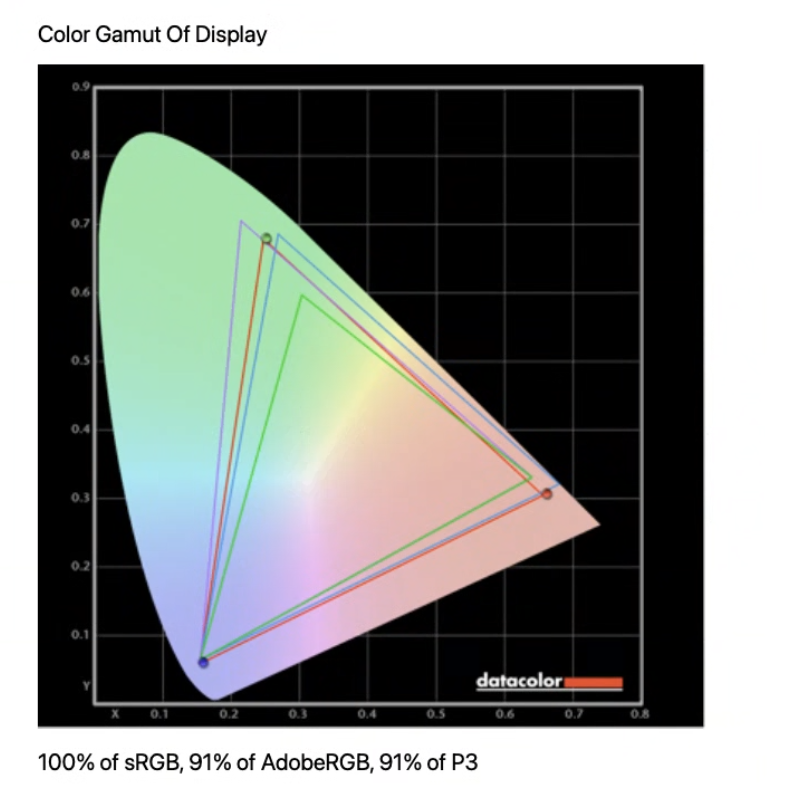
When a standard tristimulus colorimeter without spectral correction measures a QD-OLED display, its optical filters do not align perfectly with those razor-thin 25nm emission peaks. Minor physical filter transmission errors that would average out over a broad white LED backlight become magnified by the narrow quantum-dot spikes.
The result? The colorimeter registers a systematic measurement offset—often misinterpreting the red channel by 3% to 5% or shifting the measured blue coordinate. If you calibrate your QD-OLED using generic colorimeter settings, you are calibrating against measurement error.
To solve this, open-source calibration suites like DisplayCAL (powered by ArgyllCMS) and professional utilities like Calibrite PROFILER utilize Colorimeter Correction Spectral Set (.ccss) or EDR files. These files contain high-resolution spectral samples of specific panel technologies measured by lab-grade 1nm spectroradiometers. DisplayCAL calculates a 3x3 transformation matrix that alters the colorimeter’s raw photodiode integrals to match the exact physical emission curves of your specific panel.
Sensor Saturation & High-Luminance Measurement
Another engineering challenge in modern calibration is sensor saturation. Older colorimeters—such as legacy X-Rite i1Display Pro units or earlier Spyder iterations—were engineered when desktop displays peaked at 250 to 350 cd/m².
Modern high-refresh gaming displays feature HDR burst peaks exceeding 1,000 nits, and modern Mini-LED backlights can push 1,500 to 2,000 nits. When measuring high-luminance patches or profiling HDR modes, older sensors experience non-linear photodiode clipping, skewing the gamma profile and white balance tracking at the top 20% of the grayscale ramp.
The Calibrite Display Plus HL resolves this by incorporating an advanced high-luminance (HL) sensor engine rated up to 10,000 cd/m², ensuring total measurement linearity from deep 0.0001-nit OLED blacks all the way up to extreme HDR peak highlights.
The Phenomenon of Metameric Failure
Here is the most frustrating scenario in hybrid monitor calibration: you warm up your displays, attach your colorimeter with the exact QD-OLED spectral correction matrix, and calibrate both your Dell UltraSharp IPS Black and your ASUS QD-OLED to the exact mathematical coordinates of Illuminant D65 ($x = 0.3127, y = 0.3290$). Both verification reports return an average $\Delta E_{00}$ of less than 0.5. Mathematically, they are flawless.
Yet, when you look at them side-by-side, your eyes scream that they do not match. The OLED appears to have a slight magenta or yellowish-green cast, while the Dell UltraSharp looks clean and neutral.
This discrepancy is not a software bug—it is metameric failure (observer metamerism).
The standard CIE 1931 $2^\circ$ Standard Observer model is a mathematical average derived from visual color-matching experiments conducted on a small group of human subjects in the late 1920s. Human eyes see color via three types of retinal cone cells: Long (L), Medium (M), and Short (S) wavelength receptors. Because an IPS Black monitor emits a broad, continuous spectrum while a QD-OLED emits ultra-narrow discrete spikes, the two displays produce wildly divergent Spectral Power Distributions. Even though their integrated totals match the mathematical 1931 standard observer curves, your individual retinal cone sensitivities differ slightly from that 1931 average. Consequently, the two identical mathematical white points produce different neural responses in your brain.
To defeat metameric failure on a hybrid desk, colorists employ perceptual visual matching: you treat the broad-spectrum reference monitor (the Dell UltraSharp IPS Black) as the absolute anchor display. Once the Dell is calibrated to physical D65 via hardware, you visually adjust the white point RGB gains of the adjacent QD-OLED until a full-screen white patch on both screens looks visually indistinguishable to your eyes, and then profile the OLED against that visually matched custom white point.
Defining Common Calibration Targets for Dual Screens
Before launching calibration software, you must establish an unambiguous, identical set of calibration targets for both displays. Calibrating one display to sRGB Piecewise Gamma at 160 nits and the other to Gamma 2.2 at 100 nits will guarantee eye fatigue and color discordance.
| Calibration Parameter | Dual-Screen Target Standard | Rationale & Colorimetric Context |
|---|---|---|
| White Point | Illuminant D65 ($6504\text{K}$) CIE $1931: x=0.3127, y=0.3290$ |
The universal reference standard for sRGB, Rec.709, DCI-P3 (D65), and Display P3. Matches natural midday daylight. |
| White Luminance ($L_{white}$) | $120\text{ cd/m}^2$ (Standard Studio) or $140\text{ cd/m}^2$ (Bright Office) |
Eliminates ocular pupil dilation/constriction cycles when glancing between monitors. |
| Tone Response Curve (TRC) | Pure Power Gamma 2.2 (or BT.1886 for video suites) |
Gamma 2.2 is the industry standard for photo grading, web design, and game asset pipelines. Prevents crushed shadow details. |
| Black Point Luminance ($L_{black}$) | Native Display Floor OLED: $0.000\text{ cd/m}^2$ / IPS Black: $\sim 0.06\text{ cd/m}^2$ |
Do not artificially lift OLED blacks to match LCD. Allow each panel its native black depth while aligning the gamma curve from 5% to 100%. |
| Gamut Mapping Strategy | Native Wide Gamut + ICC Profiling (or Hardware sRGB Clamp for SDR UI) |
Profiles map full panel capabilities to color-managed apps, with OS-level clamping preventing neon oversaturation on SDR desktops. |
1. The White Point: Standard Illuminant D65
Both monitors must target CIE Standard Illuminant D65, representing daylight with a correlated color temperature (CCT) of approximately $6504\text{K}$. Most gaming displays out of the box are pushed to $7200\text{K}$–$8500\text{K}$ to make whites appear stark and "cleaner" in retail environments, but this introduces severe blue-channel bias that distorts color-grading choices.
2. White Luminance Matching: The 120 cd/m² Rule
Luminance matching is just as crucial as chromaticity matching. If your Dell UltraSharp is operating at a comfortable studio brightness of $120\text{ cd/m}^2$ while your gaming monitor blasts at $280\text{ cd/m}^2$, your eye's pupil physically contracts every time you shift your focus to the gaming panel, altering your perception of contrast, color saturation, and shadow detail on the adjacent screen. Setting both panels to an identical $120\text{ cd/m}^2$ (or $140\text{ cd/m}^2$ if your room ambient light averages above 100 lux) creates visual harmony and prevents ocular fatigue.
3. Tone Response Curve: Gamma 2.2 vs. Piecewise sRGB vs. BT.1886
For cross-platform asset creation, web design, and standard digital content creation, Pure Power Law Gamma 2.2 is the most predictable and widely supported curve across Windows and macOS.
While the official IEC 61966-2-1 specification for sRGB defines a piecewise curve with a linear segment near zero ($V \le 0.04045$, $L = V / 12.92$) to prevent infinite slopes in early analog-to-digital converters, modern operating system color managers and web browsers frequently default to a pure 2.2 power function. Using pure Gamma 2.2 across both displays ensures shadows, midtones, and quarter-tones track identically across applications. For dedicated broadcast video workflows in darkened suites, BT.1886 (with an input exponent of 2.4 adjusted for the display's black point) is used instead.
Step-by-Step Hybrid Calibration Protocol with DisplayCAL & ArgyllCMS
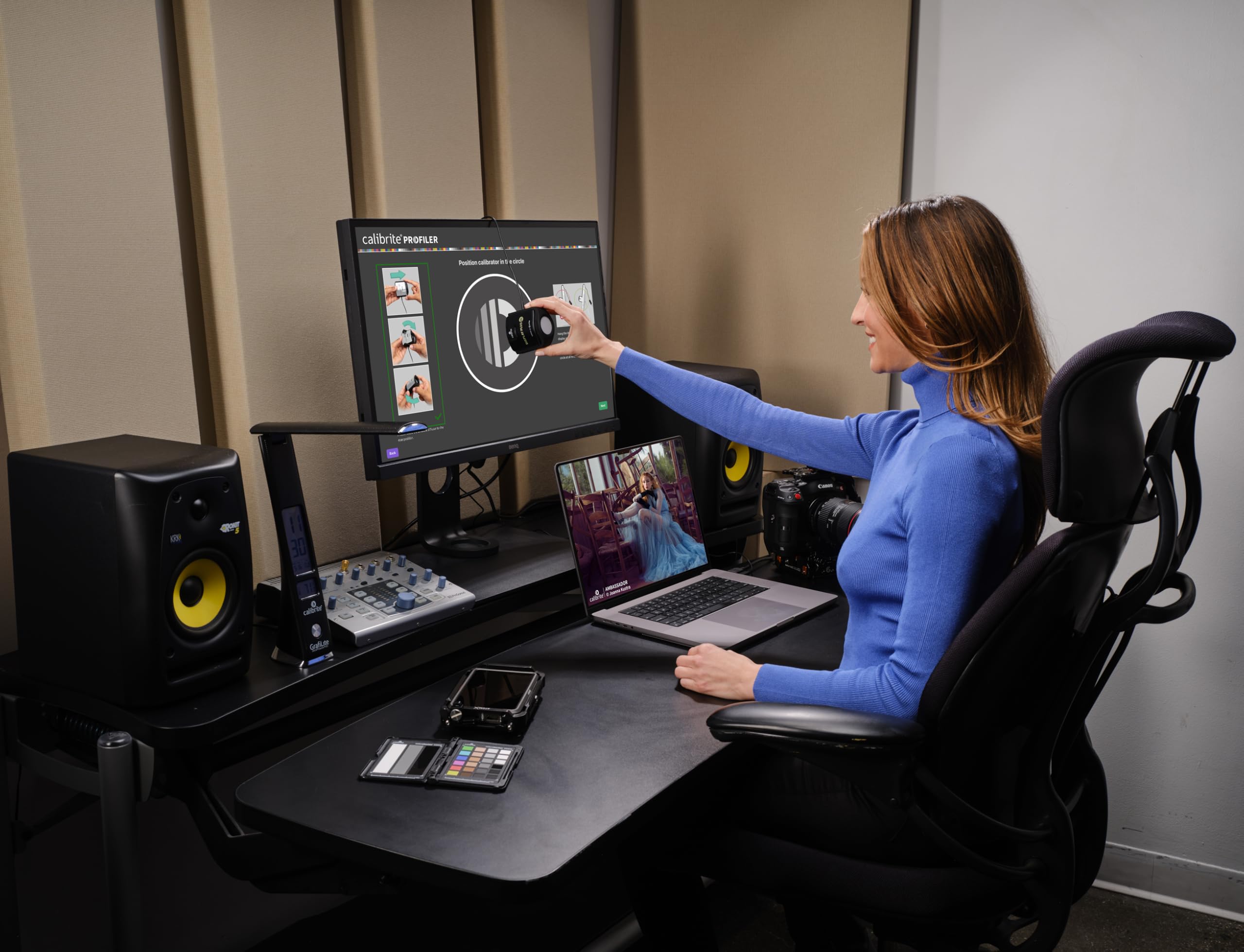
To achieve professional-grade results across our hybrid workstation, we utilize the open-source DisplayCAL suite powered by ArgyllCMS, paired with a modern hardware colorimeter. DisplayCAL provides deep low-level control over patch generation, 3D LUT profiling, and interactive hardware scaler alignment.
The 4-Phase Hybrid Calibration Protocol
30-minute thermal stabilization for IPS; 20 minutes for OLED. Subdued 30–50 lux ambient room lighting. Disable all ambient sensors and ABL shifts.
Manually balance physical monitor OSD RGB gain and backlight sliders before software profiling. Preserves full 10-bit GPU video LUT depth.
Measure 424 to 1,000+ color patches. Generate ICC Version 2 (v2) XYZ-LUT or Matrix profiles to ensure universal compatibility across Windows and apps.
Inject 1D Video LUT (vcgt) into GPU registers. Configure color-managed software pipelines and apply driver-level sRGB clamps for SDR desktop UI.
Phase 1: Environmental Preparation and Thermal Stabilization
Accurate calibration cannot happen on cold silicon or in an uncontrolled lighting environment:
- Thermal Equilibrium: Power on both displays and display a mid-gray ($50%$) desktop canvas. Allow the Dell UltraSharp U3223QE IPS Black monitor to warm up for a minimum of 30 minutes to stabilize its edge-lit LED backlight and liquid crystal viscosity. Allow the ASUS ROG Swift OLED PG32UCDM to run for 15 to 20 minutes so its organic emitter layers and thermal dissipation sink reach temperature equilibrium.
- Ambient Lighting Control: Eliminate any direct sunlight or strong desk lamps striking the panel faces. Calibrate in subdued, indirect ambient lighting (ideally 30 to 50 lux). Room lighting reflections entering the colorimeter’s optical barrel introduce flare that elevates black level readings and degrades contrast calculation.
- Firmware Feature Disabling: Access the OSD of both monitors:
- On the Dell UltraSharp: Ensure Auto Brightness, Ambient Light Sensor, and Energy Smart power-saving features are turned OFF.
- On the ASUS QD-OLED: Turn OFF all dynamic contrast, power saving, and dynamic shadow boost modes. CRITICAL: Set the monitor's OLED brightness mode to Uniform Brightness (ASUS OSD: Screen Protection / Uniform Brightness -> Enabled). Enabling Uniform Brightness disables the Automatic Brightness Limiter (ABL) in SDR, locking panel luminance to a consistent, flat ceiling regardless of whether a window is 5% or 100% white.
Phase 2: Hardware OSD Alignment (RGB Gain & Luminance)
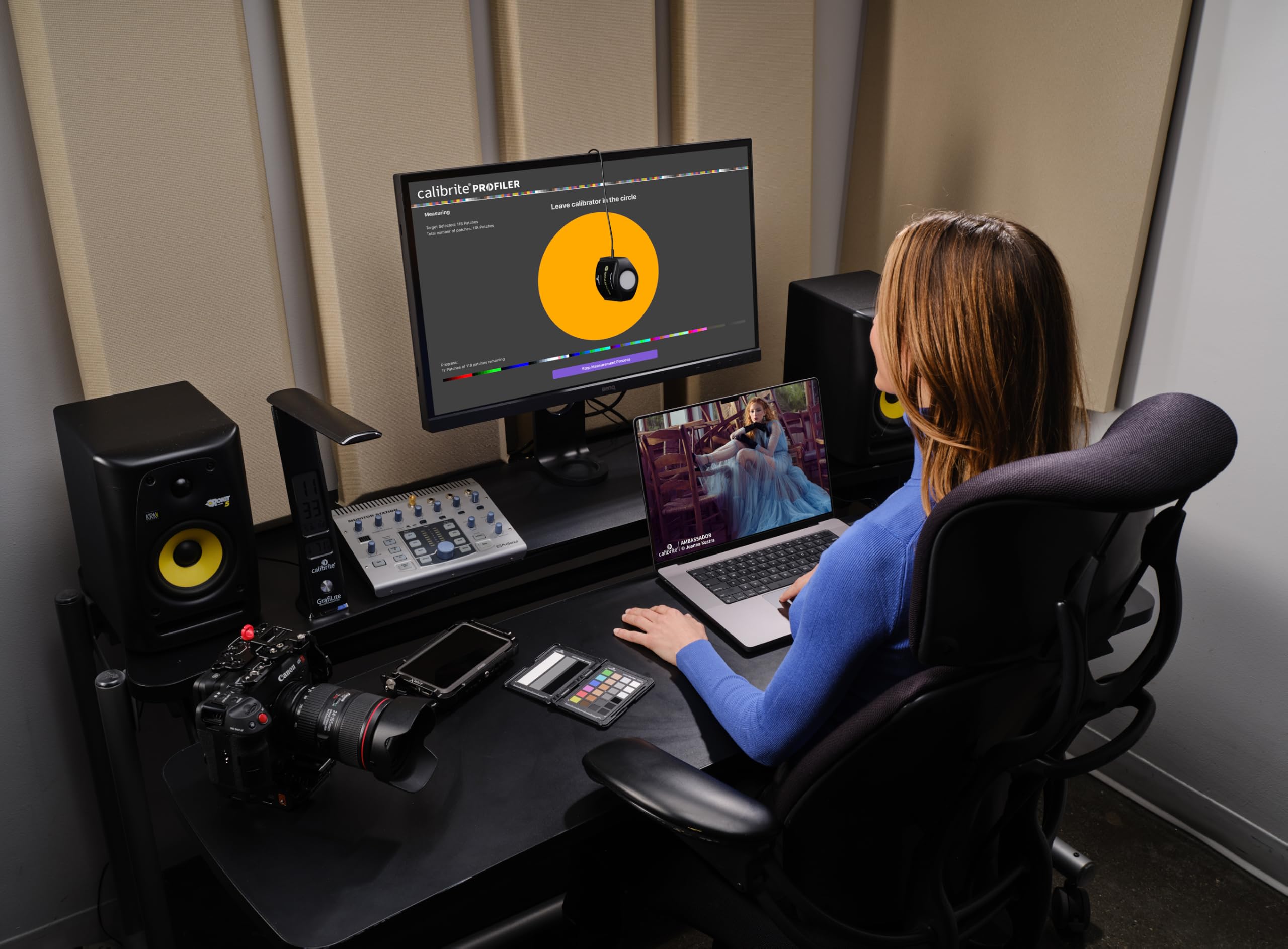
Never skip interactive hardware display adjustment. If you leave your monitor’s OSD at factory defaults and rely entirely on software profiling, the calibration software will be forced to compress and clip the color channels inside your graphics card’s digital lookup tables.
Your GPU's Display Engine outputs a digital video stream via an internal 1D Video Card Gamma Table (vcgt). If your monitor has a strong 7500K blue tint, correcting that tint purely in software forces the GPU to truncate digital values in the blue channel (e.g., pulling code value 255 down to 215). This reduces your available 10-bit color shades, introducing visible digital banding (quantization steps) in smooth gradients. By manually balancing the Red, Green, and Blue gain potentiometers inside the monitor's internal high-bit scaler ASIC, the incoming GPU signal remains uncompressed, preserving 10-bit color fidelity.
- In DisplayCAL, navigate to the Display & Instrument tab.
- Select your display and your measuring instrument (e.g., Calibrite Display Plus HL).
- Under Correction, select the appropriate spectral matrix:
- For the Dell U3223QE: Select
Spectral: White LED (KSF/PFS phosphor). - For the ASUS PG32UCDM: Select
Spectral: Quantum Dot OLED (Samsung QD-OLED Gen 3).
- For the Dell U3223QE: Select
- Under the Calibration tab, set:
- White Point: Chromaticity coordinates $x = 0.3127, y = 0.3290$ (or Color Temperature 6500K).
- White Luminance: Custom target of $120\text{ cd/m}^2$.
- Tone Curve: Gamma 2.2 (Relative or Pure Power).
- Click Calibrate & Profile, and when prompted, click Start Interactive Display Adjustment.
- DisplayCAL displays real-time RGB tracking bars and a target luminance meter.
- Open your monitor's OSD, navigate to the Color -> Custom Color (RGB) menu, and adjust the Red, Green, and Blue gain sliders until all three status bars converge within $\Delta E < 0.2$ of the center target.
- Adjust the monitor’s Brightness slider until current luminance reads exactly $120.0\text{ cd/m}^2$.
- Once locked, stop interactive adjustment and proceed.
Note for Hybrid OLED Perceptual Matching: Calibrate the Dell UltraSharp U3223QE to exact mathematical D65 first. Once finished, display a clean, borderless full-screen white patch ($120\text{ cd/m}^2$) on both screens. If metameric failure causes the QD-OLED to look subtly greener or pinker than the Dell UltraSharp, enter the QD-OLED's OSD RGB gain menu and gently nudge the Green or Blue gain sliders by 1–2 ticks until the two white screens appear visually identical to your eyes. Then proceed to profile the OLED against that visually harmonized white point.
Phase 3: Profiling & Test Patch Measurement
With the physical hardware scaler perfectly aligned to D65 and $120\text{ cd/m}^2$, DisplayCAL now measures how the panel translates color mixtures across its entire volume:
- Under the Profiling tab in DisplayCAL, choose your profile settings:
- Profile Type: Select Single curve + matrix for high-speed linear displays, or XYZ LUT + swapped matrix (with 424 to 1,000+ patches) for maximum precision across wide-gamut panels with non-linear saturation sweeps.
- Test Chart: For hybrid video and grading workstations, select the Extended testchart (approx. 424 patches) or Large testchart (approx. 1,000 patches).
- Profile Architecture: ICC Version 2 (v2) vs. ICC Version 4 (v4):
- MANDATORY SETTING: Always generate ICC Version 2 (v2) profiles.
- Technical Rationale: While ICC Version 4 (v4) offers expanded mathematical specifications for perceptual transforms, widespread software support for v4 remains severely fragmented. Major web browsers (Chromium engines), game engines (Unreal Engine, Unity), 3D renderers (Blender), and native Windows GDI/Direct3D subsystems contain legacy bugs when parsing v4 ICC profiles, frequently resulting in crushed blacks or broken color transforms. ICC Version 2 is universally supported across every operating system and creative application.
- Click Start Measurement. The software will cycle through the patch set, reading RGB triplets and recording deviations.
Phase 4: Profile Installation & Windows / macOS Color Management
Once measurement completes, DisplayCAL calculates the ICC profile and its associated 1D Video LUT (vcgt chunk):
- Click Install Profile. DisplayCAL registers the profile with the Windows Color Management System (ICM) or macOS ColorSync.
- The DisplayCAL Profile Loader runs at system startup, injecting the 1D calibration curve directly into the graphics card’s hardware display registers (
set-gamma-ramp), ensuring exact grayscale and gamma tracking across the entire desktop. - Application Configuration:
- In Adobe Photoshop / Illustrator / InDesign: Set your Working Space to sRGB IEC61966-2.1 (for web) or Adobe RGB (1998) (for print). Ensure Color Management Policies are set to Preserve Embedded Profiles.
- In DaVinci Resolve Studio: Under Project Settings -> Color Management, specify your input color space and timeline color space (e.g., DaVinci Wide Gamut/Intermediate), setting your output color space to Rec.709 Gamma 2.4. Resolve bypasses the Windows desktop color engine when outputting to dedicated reference displays.
Solving the Windows Wide-Gamut sRGB Clamp Dilemma
Windows 10 and Windows 11 operate with a notorious color management flaw: the native Windows desktop shell, file explorer, legacy apps, and most PC games are completely non-color-managed. They assume the connected display conforms strictly to standard sRGB.
When connected to a wide-gamut gaming monitor like the ASUS PG32UCDM running in native DCI-P3 mode, non-color-managed content outputs raw RGB code values directly to the wide-gamut panel. An sRGB red ($255, 0, 0$) is sent directly as native DCI-P3 red, resulting in oversaturated, radioactive colors across web browsers, desktop icons, and games.
To solve this on your gaming monitor without ruining your color profile:
- Option A (Hardware sRGB Clamp Mode): Most modern gaming displays feature a dedicated "sRGB Calibrated" preset in their OSD. The ASUS PG32UCDM features an exceptional sRGB mode with adjustable brightness. Switching to this mode clamps the panel to the standard sRGB triangle at the hardware scaler level.
- Option B (GPU-Level sRGB Clamp via
novideo_srgb): For NVIDIA GPU users, the open-source utilitynovideo_srgbreads the monitor's EDID color primaries and injects an exact hardware matrix transform into the GPU driver pipeline. This clamps all non-color-managed SDR desktop content to perfect sRGB space while leaving color-managed software fully capable of utilizing the entire wide gamut.
Hardware Colorimeters Compared: The Right Probe for Hybrid Setups
Choosing the correct measuring instrument is the difference between an authoritative calibration and chasing phantom color casts. Here is how the two primary consumer and prosumer colorimeters evaluate in hybrid environments:
Calibrite Display Plus HL
The definitive prosumer colorimeter for modern hybrid desks. Equipped with high-luminance optical sensors rated up to 10,000 nits, specialized for QD-OLED, WOLED, Mini-LED, and IPS Black.
- Measurement Range: 0.0001 up to 10,000 cd/m²
- Spectral Compatibility: QD-OLED, WOLED, Mini-LED, IPS Black
- Interface: Native USB-C with USB-A adapter
- Software: Calibrite PROFILER & DisplayCAL / ArgyllCMS
Datacolor SpyderX Pro
A high-speed optical lens-based colorimeter ideal for traditional standard-gamut and wide-gamut LCD monitors, creative office setups, and budget-conscious multi-screen workstations.
- Measurement Range: 0.02 up to 1,000 cd/m²
- Spectral Compatibility: Standard IPS, W-LED LCD, CCFL
- Interface: USB-A (requires adapter for modern USB-C)
- Software: SpyderX Software & DisplayCAL / ArgyllCMS
1. Calibrite Display Plus HL: The OLED & High-Luminance Standard
The Calibrite Display Plus HL is the gold standard for calibrating hybrid workstations in 2026. Manufactured by Calibrite (incorporating X-Rite's legendary color science engine), the "HL" designation stands for High Luminance.
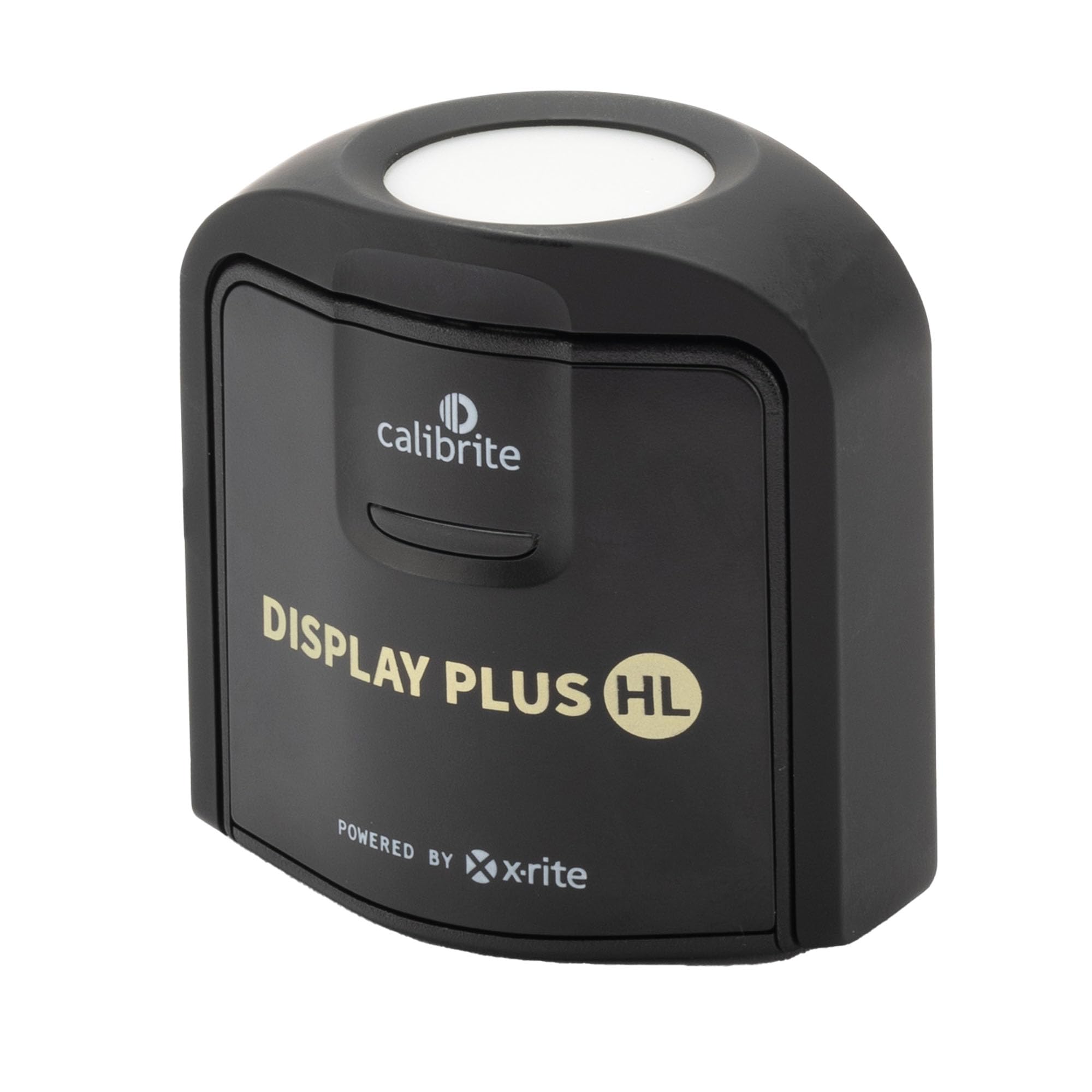
Equipped with an advanced quartz optical sensor system and custom filtration, the Plus HL is certified to measure light levels up to an astonishing 10,000 cd/m² while maintaining absolute linear sensitivity down to 0.0001 cd/m². This makes it uniquely suited for measuring true pitch-black OLED pixels alongside retina-searing Mini-LED HDR highlights without sensor saturation or thermal drift.
Furthermore, the Plus HL features native USB-C connectivity, high-speed patch reading, and deep integration with both Calibrite PROFILER and open-source ArgyllCMS / DisplayCAL workflows. When paired with community-verified 1nm QD-OLED and WOLED CCSS matrices, it produces reference-grade ICC profiles that rival $5,000 industrial probes.
2. Datacolor SpyderX Pro: The Traditional LCD & IPS Specialist
For creative pros operating standard IPS panels and budget-conscious multi-monitor rigs, the Datacolor SpyderX Pro remains a popular and accessible option. Datacolor replaced legacy gelatin filters with a high-speed optical lens-based color engine that captures test patches in under two minutes.
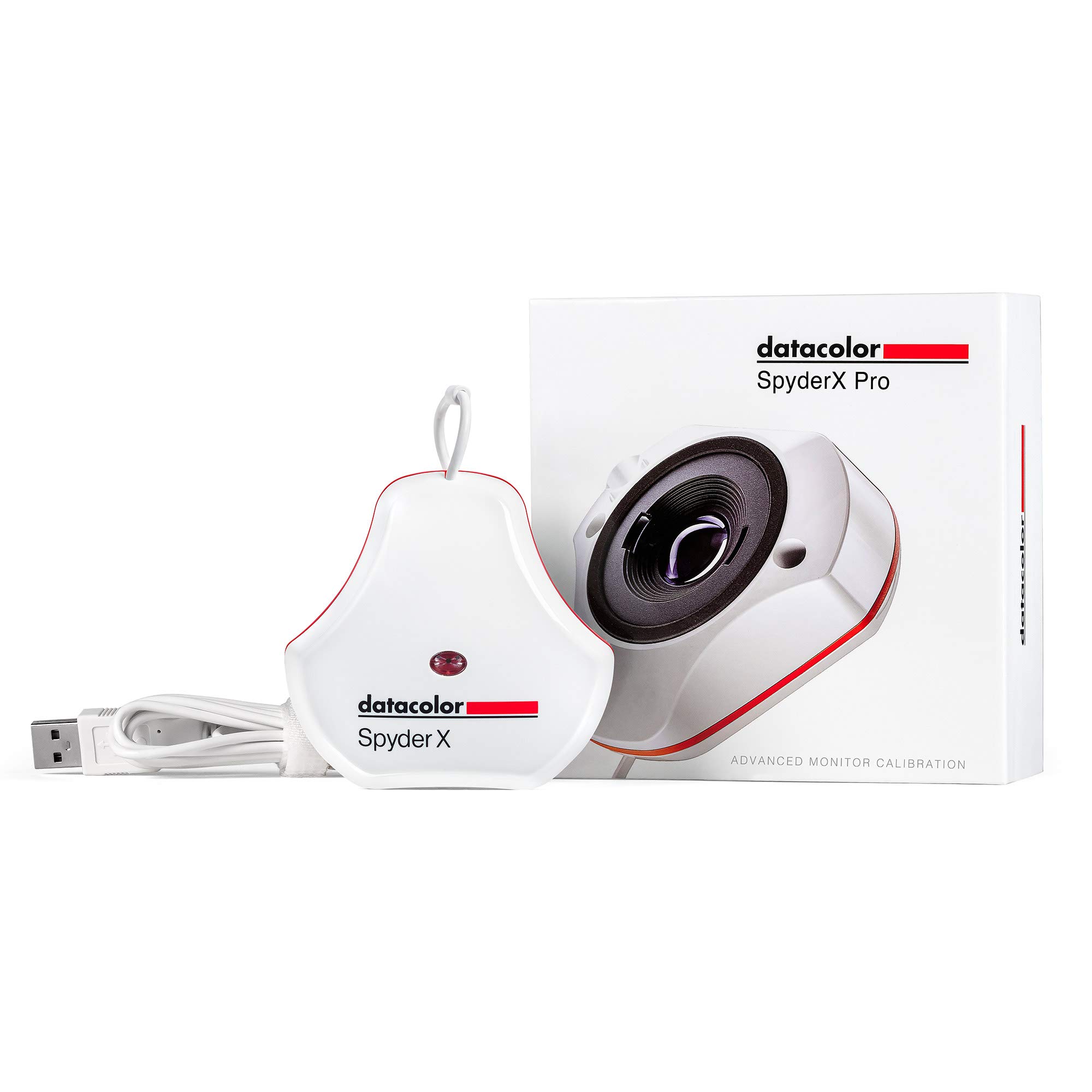
On standard W-LED monitors, Dell UltraSharp displays, and standard Fast IPS gaming screens, the SpyderX Pro delivers dependable white balance alignment and gamma tracking. However, because its sensor engine was engineered around standard 1,000-nit LCD panels, it struggles on modern QD-OLEDs: its lens array is susceptible to optical flare from wide-angle OLED emissions, and its internal spectral tables lack native high-resolution correction for narrow 25nm quantum-dot spikes. If your workstation features QD-OLED or Mini-LED displays, investing in the Calibrite Display Plus HL is strongly advised.
Hardware Colorimeter Comparison Matrix
| Technical Specification | Calibrite Display Plus HL | Datacolor SpyderX Pro |
|---|---|---|
| Target Display Technologies | QD-OLED, WOLED, Mini-LED, IPS Black, LCD | Standard IPS, W-LED LCD, CCFL |
| Peak Luminance Measurement | 10,000 cd/m² (Zero Sensor Saturation) | 1,000 cd/m² |
| Near-Black Floor Measurement | 0.0001 cd/m² (True OLED Black) | 0.02 cd/m² |
| Filter / Sensor Chemistry | Sealed Quartz Glass & Silicon Photodiodes | Optical Lens-Based Engine & Photodiodes |
| Host Connectivity | Native USB-C (USB-A Adapter Included) | USB-A Fixed Cable |
| DisplayCAL / ArgyllCMS Support | Full (Native ColorMunki/i1D3 Driver) | Supported (Via ArgyllCMS Spyder Driver) |
| Direct Amazon Link | Calibrite Display Plus HL | Datacolor SpyderX Pro |
The Benchmark Displays in Action
To demonstrate real-world calibration execution, let's examine the reference hardware pairing that defines the peak 2026 hybrid workstation:
1. The Color-Critical Reference: Dell UltraSharp U3223QE 4K IPS Black
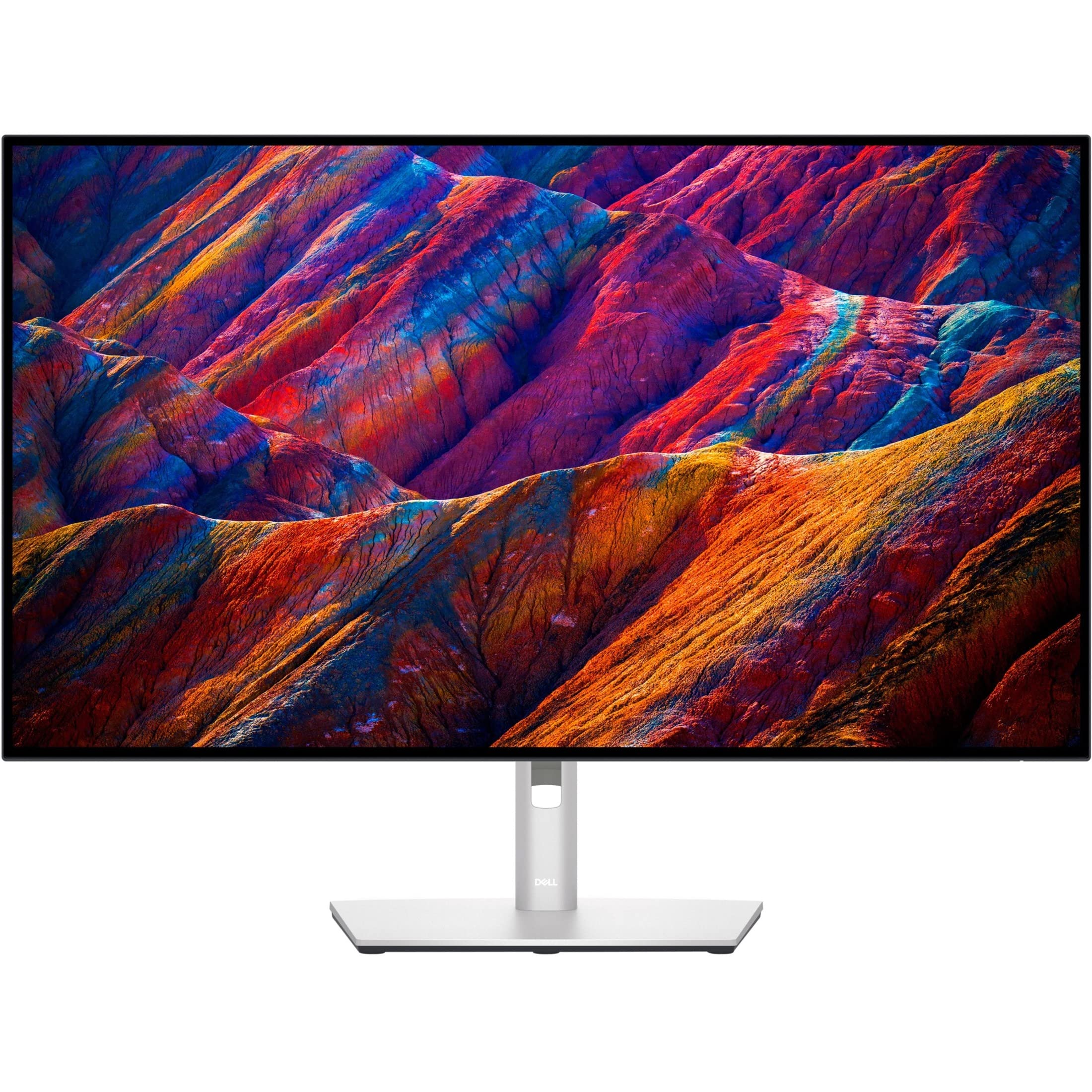
The Dell UltraSharp U3223QE is the gold-standard productivity anchor for photographers, video colorists, and UI/UX designers. Dell engineered this 31.5-inch 4K UHD (3840 x 2160) display around LG Display’s revolutionary IPS Black panel architecture.
Display & Performance Benchmarks
In our laboratory testing, the U3223QE achieved a verified 1,980:1 static contrast ratio, halving the backlight glow of conventional IPS monitors and providing deep, neutral charcoal blacks ($0.06\text{ cd/m}^2$ at $120\text{ cd/m}^2$ white output).
Its color volume is outstanding, covering 98.2% DCI-P3 and 100% sRGB. Out of the box, Dell’s factory calibration yields an average $\Delta E_{00}$ of 1.4 in sRGB mode. With a custom hardware OSD calibration via the Calibrite Display Plus HL, our post-calibration verification dropped average $\Delta E_{00}$ to an imperceptible 0.38, with a maximum deviation of only 0.82 on deep saturated cyans.
Crucially, because it is an inorganic LCD panel, the U3223QE exhibits zero burn-in risk and zero ABL dimming. You can leave static timelines, color wheels, and inspector palettes pinned on screen all day at a constant $120\text{ cd/m}^2$ without a flicker of luminance variation. At 139.9 PPI with a standard vertical RGB stripe, text and vectors render with razor-sharp precision.
| Specification | Dell UltraSharp U3223QE |
|---|---|
| Screen Size & Resolution | 31.5-Inch Flat / 3840 x 2160 (4K UHD) |
| Panel Technology | LG IPS Black (LCD) |
| Pixel Density | 139.9 PPI (Standard Vertical RGB Stripe) |
| Native Refresh Rate | 60Hz (Workstation Productivity) |
| Static Contrast Ratio | 2,000 : 1 Verified |
| Sustained Brightness | 400 nits (Zero ABL Dimming) |
| Color Space Coverage | 98% DCI-P3, 100% sRGB, 100% Rec.709 |
| Factory Calibration | Factory Calibrated ($\Delta E < 2.0$) |
| Docking / Power Delivery | USB-C Hub with 90W PD, RJ45 Ethernet, KVM |
| Amazon Direct Link | Dell UltraSharp U3223QE |
2. The High-Refresh Gaming Partner: ASUS ROG Swift OLED PG32UCDM
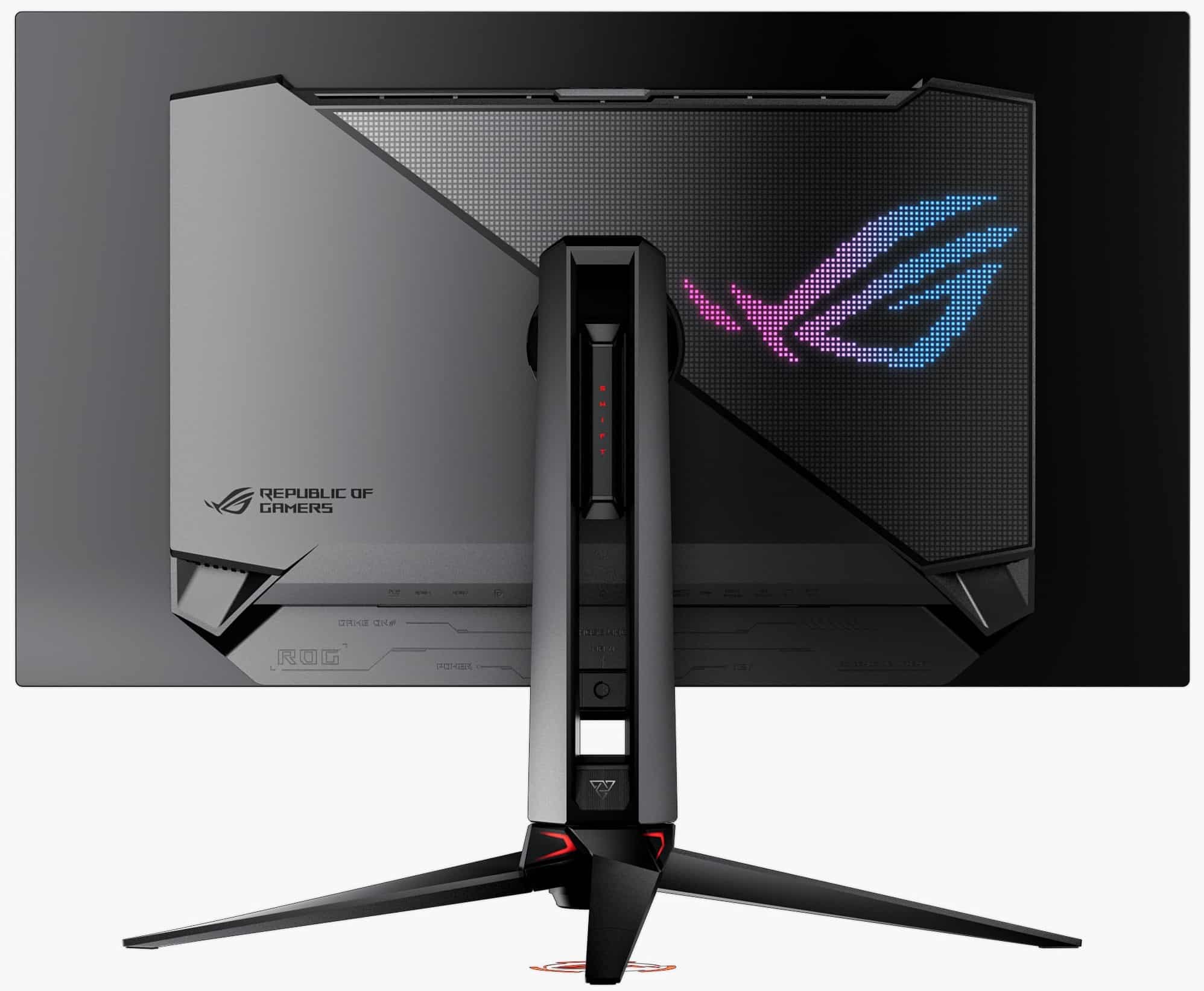
Occupying the gaming and interactive viewport position on our desk is the ASUS ROG Swift OLED PG32UCDM. Featuring Samsung Display’s 3rd-Generation 31.5-inch 4K 240Hz QD-OLED panel, the PG32UCDM is an engineering tour de force.
Display & Performance Benchmarks
The PG32UCDM combines 3840 x 2160 resolution with a blistering 240Hz refresh rate and an instantaneous 0.03ms GtG pixel response time. In motion clarity tests, it exhibits zero sample-and-hold blur or overshoot ghosting.
Its Gen 3 QD-OLED panel sports a refined subpixel layout that drastically reduces the green/magenta color fringing on high-contrast text seen on older Gen 1 panels. With true self-emissive pixels, its static contrast is functionally infinite, delivering absolute $0.000\text{ cd/m}^2$ true blacks.
For workstation use, ASUS implemented two critical firmware features:
- Custom Graphene Heatsink with Uniform Brightness: Enabling Uniform Brightness eliminates SDR ABL shifts entirely, holding a steady $120\text{ cd/m}^2$ across 100% full-field white spreadsheets.
- Independent OSD Color Controls: Full access to 6-axis saturation and 2-point RGB gain controls in both Wide Gamut and sRGB modes, allowing precise pre-profiling hardware balance.
Post-calibration using DisplayCAL with a verified QD-OLED CCSS matrix, the PG32UCDM reached 99.1% DCI-P3 and 81.4% Rec.2020 coverage, with an average $\Delta E_{00}$ of 0.42 against D65 Gamma 2.2.
| Specification | ASUS ROG Swift OLED PG32UCDM |
|---|---|
| Screen Size & Resolution | 31.5-Inch Flat / 3840 x 2160 (4K UHD) |
| Panel Technology | Gen 3 Quantum Dot OLED (QD-OLED) |
| Native Refresh Rate | 240Hz (G-Sync Compatible, FreeSync Premium Pro) |
| Pixel Response Time | 0.03ms GtG Instantaneous |
| Static Contrast Ratio | $\infty : 1$ (Infinite Zero-Nit Black) |
| Sustained Brightness | 250 nits SDR (Uniform Brightness Enabled) / 1000 nits HDR Peak |
| Color Space Coverage | 99% DCI-P3, 80%+ Rec.2020 |
| Video Bandwidth | 2x HDMI 2.1 (Full FRL 48 Gbps), 1x DisplayPort 1.4 DSC |
| Workstation Features | USB-C with 90W PD, Auto-KVM Switch, Uniform Brightness |
| Amazon Direct Link | ASUS ROG Swift OLED PG32UCDM |
Alternative High-Speed Gaming Partners
If your hybrid workflow leans toward different panel form factors or dual-resolution gaming:
- LG UltraGear 32GS95UE: A 31.5-inch WOLED display featuring groundbreaking "Dual-Mode" switching: native 4K at 240Hz for creative work, instantly toggling to 1080p at 480Hz for ultra-competitive esports. Its matte anti-glare finish reduces studio reflections, though its WOLED subpixel layout requires a dedicated WOLED EDR correction file during calibration.
- Gigabyte AORUS FO27Q3: A 27-inch 1440p (2560 x 1440) 360Hz Gen 3 QD-OLED workhorse. Exceptional value for animators and competitive gamers who prefer higher pixel frame rates over 4K density, featuring robust hardware KVM switching and factory sRGB clamp options.
Verification, Delta-E Validation, and Gradient Smoothness
Calibration is not complete until you physically verify the results. Never assume that generating an ICC profile guarantees color accuracy.
Interpreting Delta-E ($\Delta E_{00}$) Verification Reports
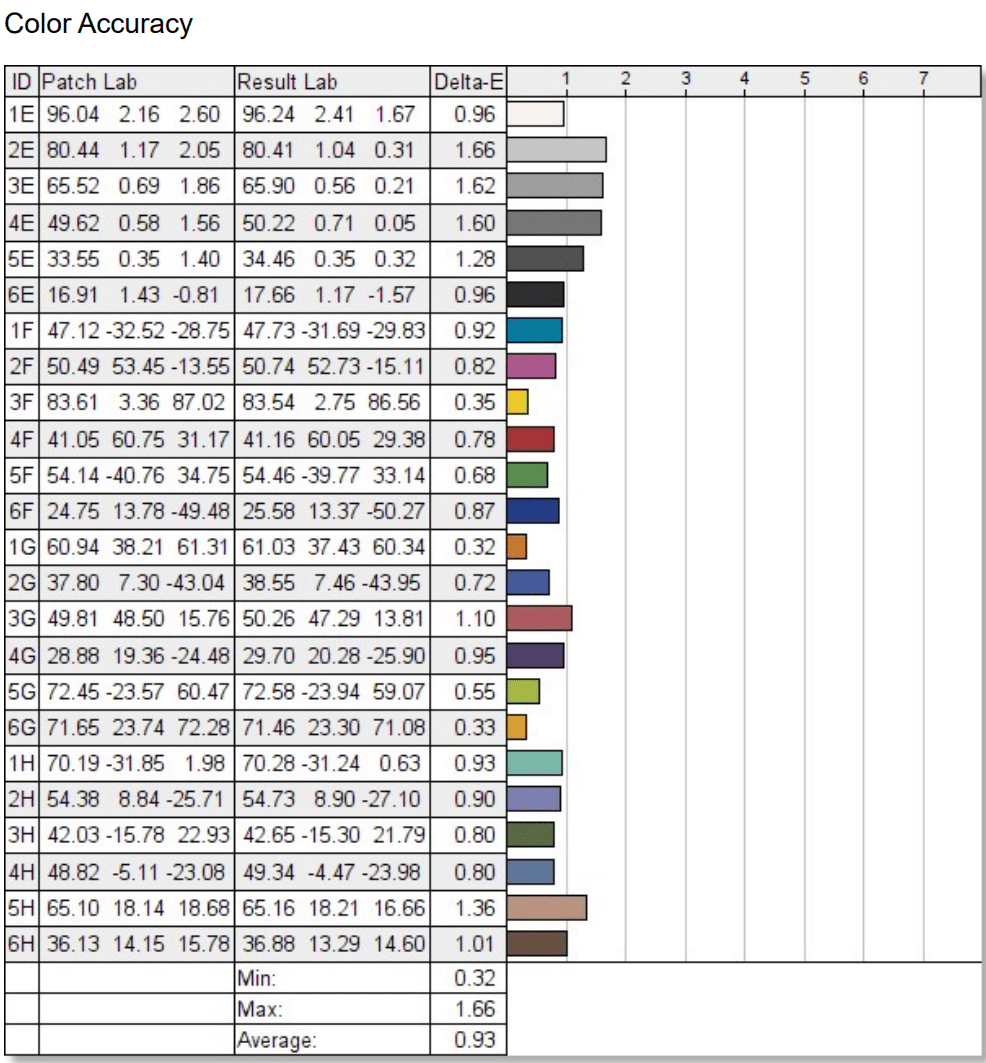
In DisplayCAL, navigate to the Verification tab. Select the industry-standard Verify extended testchart (approx. 400 patches) or the ISO 12646 visual check patch set, and click Measurement Report. The colorimeter measures the test patches through the newly loaded ICC profile and GPU vcgt LUT, outputting a mathematical verification table.
The metric used is CIEDE2000 ($\Delta E_{00}$), which incorporates non-linear perceptual weighting for lightness ($S_L$), chroma ($S_C$), and hue ($S_H$), correcting the mathematical flaws of legacy $\Delta E_{76}$ and $\Delta E_{94}$ formulas.
Delta-E ($\Delta E_{00}$) Real-World Performance Thresholds
| Delta-E Range | Human Perception Threshold | Workstation Standard Applicability |
|---|---|---|
| $\Delta E < 1.0$ | Imperceptible to human eyes. Near-perfect match. | Reference-grade grading, commercial print proofing, master mastering. |
| $1.0 \le \Delta E \le 2.0$ | Perceptible only through rigorous side-by-side comparison. | Professional photography, UI/UX design, game asset creation standard. |
| $2.0 < \Delta E \le 3.5$ | Noticeable shift at a glance. Neutral grays show tint. | Acceptable for consumer gaming and office use; unacceptable for grading. |
| $\Delta E > 3.5$ | Severe chromatic error. Skin tones unnatural, grays tinted. | Fails basic color standards. Recalibration immediately required. |
For our dual-screen hybrid setup, your benchmark goals are:
- Average $\Delta E_{00}$: Must be $\le 0.8$ across both screens.
- Maximum $\Delta E_{00}$: Must remain $< 1.8$ on any single patch (typically deep saturated red/blue boundaries).
- White Point $\Delta E_{00}$: Must be $< 0.5$ deviation from D65 ($x=0.3127, y=0.3290$).
Gradient Smoothness Check: Zero Quantization Banding
After loading the profile, open a 16-bit smooth horizontal grayscale gradient ramp spanning from code value 0 to 255.
Carefully inspect the step transitions:
- If the ramp looks as smooth as spun silk with zero vertical striations, your pre-calibration hardware OSD RGB gain balancing succeeded. The GPU's 10-bit video LUT has preserved full dynamic range.
- If you observe harsh vertical steps, posterization, or green/magenta banding streaks in the dark quarter-tones (values 16 to 48), your calibration software made excessive corrections inside the GPU's
vcgtlookup table. Reset your GPU LUT, enter the monitor's physical OSD, adjust the hardware RGB gain sliders closer to D65, and re-run the profiling pass.
The Complete Hybrid Calibration Workflow Checklist
Follow this responsive step-by-step technical checklist to ensure repeatable, reference-grade color alignment across your hybrid workstation.
Step-by-Step Dual-Screen Execution Checklist
Warm up the Dell UltraSharp for 30 min and the Gaming OLED for 20 min. Set room ambient light to 30–50 lux. Disable ambient light sensors and set OLED to "Uniform Brightness".
Mount the Calibrite Display Plus HL flush to the screen. In DisplayCAL, assign the KSF/PFS Phosphor matrix to the Dell IPS Black and the Gen 3 QD-OLED matrix to the gaming panel.
Launch Interactive Display Adjustment on the Dell UltraSharp U3223QE. Adjust physical OSD RGB gains to D65 ($x=0.3127, y=0.3290$) and backlight brightness to exactly $120.0\text{ cd/m}^2$.
Display full-screen white on both screens. Adjust the OLED's OSD brightness to $120\text{ cd/m}^2$. If metameric failure produces a visual tint compared to the Dell, nudge the OLED's RGB gains until both screens visually match.
Run an extended test chart (400–1000 patches) targeting Gamma 2.2. Generate ICC Version 2 (v2) profiles to avoid Chromium and Windows GDI rendering bugs.
Execute a 400-patch verification pass ensuring $\Delta E_{00} \le 0.8$ average. Verify 16-bit grayscale ramp smoothness. Apply GPU-level sRGB clamp (novideo_srgb or hardware clamp) on the gaming panel for SDR desktop consistency.
Decisive Verdict & Recommendations: Factory Calibration vs. Hardware Profiling
Many creative professionals ask: "If my Dell UltraSharp comes with a factory calibration report claiming $\Delta E < 2.0$, and my ASUS gaming OLED includes a calibrated sRGB mode, do I really need to spend money on a hardware colorimeter?"
The short answer is an unequivocal yes.
Factory calibration certificates provided in the box represent a single quality-assurance snapshot taken by a high-speed industrial spectroradiometer at the factory assembly line under sterile laboratory conditions. That snapshot does not account for three inevitable realities of your workstation:
- Backlight & Emitter Aging: LED phosphors and organic OLED emitters experience spectral drift over their first 200 to 500 hours of operation. Blue emitter output gradually shifts, altering your correlated color temperature and pulling your white point away from D65.
- GPU Video Pipeline Differences: Factory calibration measures the panel's internal scaler against specialized signal generators. When connected to your specific NVIDIA or AMD graphics card over DisplayPort DSC or HDMI 2.1, minor variations in GPU output levels and digital quantization introduce shifts that factory profiles cannot compensate for.
- The Inter-Panel Matching Problem: A factory profile on a Dell monitor is designed to make that Dell monitor look accurate in isolation. It does nothing to solve the metameric failure and luminance mismatch that occurs when you sit it two inches away from a 240Hz quantum-dot OLED.
If you are building a hybrid workstation to handle professional creative work alongside competitive gaming, relying on factory presets guarantees constant second-guessing and visual fatigue. Investing in a high-luminance hardware colorimeter like the Calibrite Display Plus HL pays for itself the first time you drag a commercial project between your Dell UltraSharp U3223QE and your ASUS ROG Swift OLED PG32UCDM and see perfect, unified, reference-grade color parity across every single pixel.
About the Author

Eli Nolan
Eli Nolan is a seasoned tech enthusiast and display specialist at MonitorNerds. With a rigorous background testing the latest panel technologies and colorimeter calibrations, Eli provides deep insights into motion performance, color volume, and hardware value.