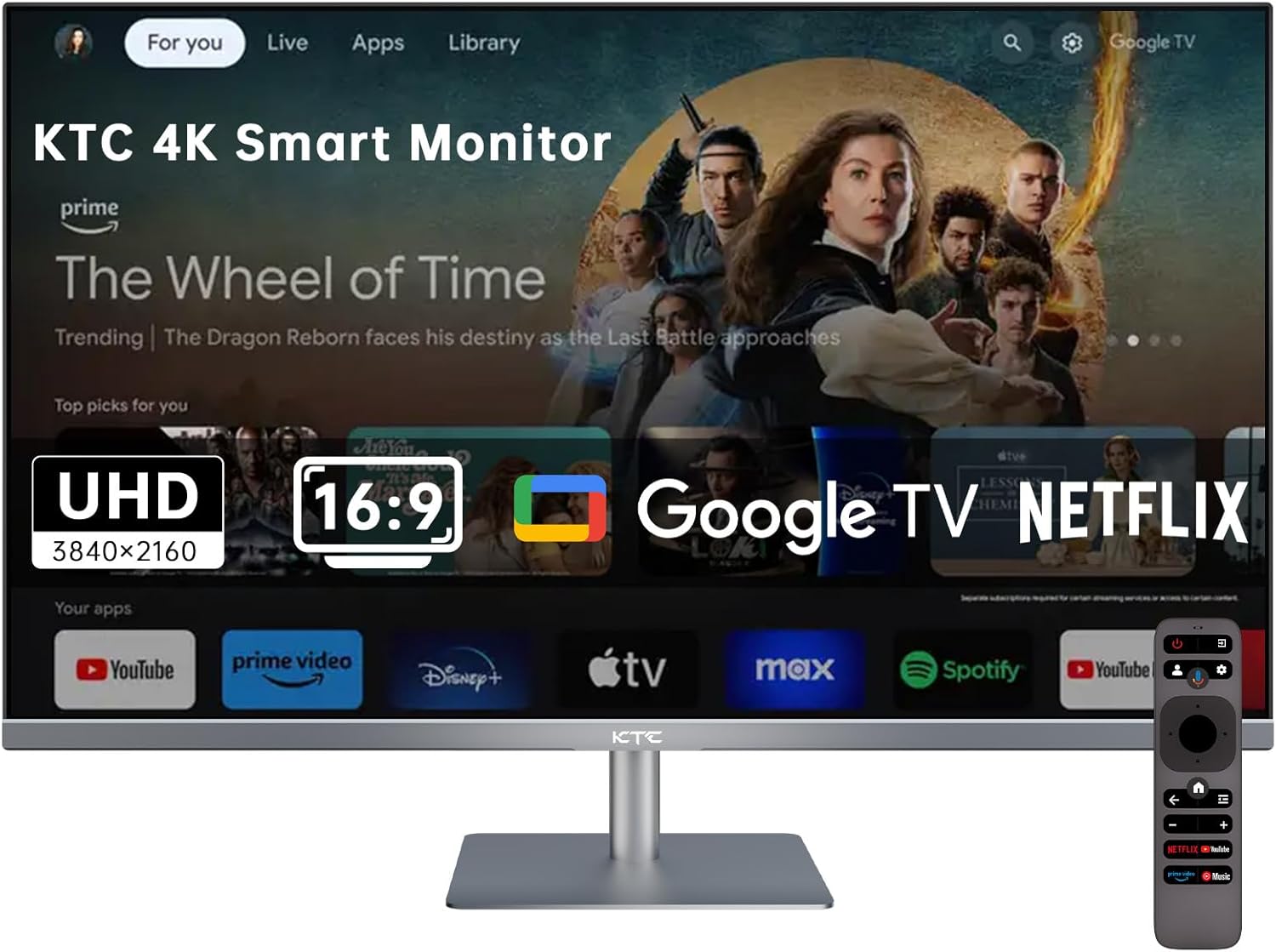
KTC M27P6 Review: 27-inch 4K Mini‑LED (HDR1400) with 4K 160Hz + 1080p 320Hz Dual Mode
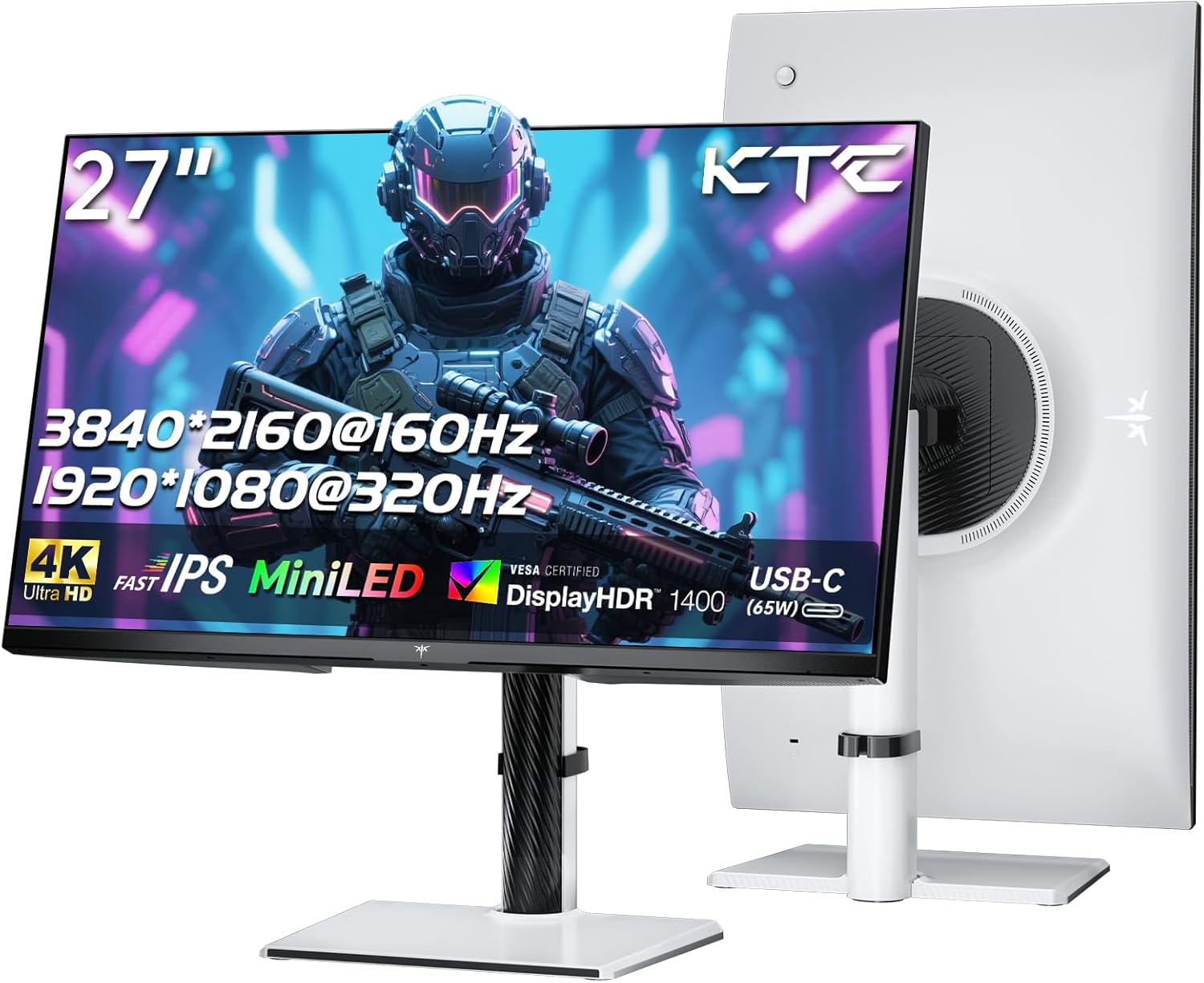
The KTC M27P6 is one of the most interesting monitor “value plays” in years, because it combines features that usually don’t show up together in the sub‑$600 tier:
- True Mini‑LED local dimming (1152 zones) for real HDR impact
- 4K @ 160Hz for sharp, high-refresh PC gaming
- 1080p @ 320Hz Dual Mode for competitive FPS
- USB‑C (65W) + built‑in KVM for a clean laptop + desktop setup
If you want one monitor that can handle AAA single-player, competitive esports, and work/creation without going OLED (burn-in anxiety) or spending flagship money, this is the pitch.
At a glance
Best for
- PC gamers who want real HDR without OLED
- People who want one monitor for both “pretty games” (4K HDR) and esports (320Hz mode)
- Mixed setups: desktop + laptop (USB‑C + KVM is a big quality-of-life win)
Not ideal for
- Anyone extremely sensitive to local dimming quirks (more on this below)
- Console-only buyers who never need 4K160/320Hz and just want a simple 4K120 display
- Purists who want “perfect blacks” (OLED still wins there)
Quick specs (what matters)
| Spec | KTC M27P6 |
|---|---|
| Size / Resolution | 27-inch / 3840×2160 (4K) |
| Panel type | Fast IPS + Mini‑LED backlight |
| Local dimming | 1152-zone FALD (full-array local dimming) |
| Refresh rate | 4K 160Hz (UHD) / 1080p 320Hz (Dual Mode) |
| HDR | VESA DisplayHDR 1400 |
| Color | Wide gamut (Quantum Dot) |
| VRR | Adaptive-Sync (FreeSync / G‑Sync compatible) |
| Ports | 2× HDMI 2.1, 1× DP 1.4, USB‑C, USB hub, headphone out |
| USB‑C | DP Alt Mode + up to 65W power delivery |
| Extras | Built‑in KVM, fully adjustable stand, VESA mount |
The real story: it’s basically two monitors in one
Mode 1: 4K @ 160Hz (the “looks amazing” mode)
This is the mode you buy it for if you play:
- Cyberpunk / Alan Wake / Elden Ring / modern AAA
- Anything where you want crisp 4K detail, smooth motion, and HDR highlights
At 27 inches, 4K is insanely sharp. Text is razor crisp and game detail pops—this is the pixel density sweet spot if you sit at a normal desk distance.
Mode 2: 1080p @ 320Hz (the “tryhard” mode)
This mode exists for one reason: competitive FPS.
If you play Valorant/CS2/Overwatch/Fortnite and you’re chasing smooth tracking and lower perceived blur, 320Hz can feel meaningfully different—if your PC can push the frames.
Honest caveat: 1080p on 27 inches is obviously softer than 4K. You don’t use this mode for “pretty.” You use it for speed.
HDR performance (why Mini‑LED matters)
Here’s the simple explanation:
- Standard IPS monitors can get bright, but blacks stay gray.
- OLED has perfect blacks, but brightness can be limited and burn-in is a real consideration.
- Mini‑LED with lots of zones is the middle path: bright highlights + much deeper blacks than normal IPS, without burn-in risk.
With 1152 zones and HDR1400-class brightness, the M27P6 can deliver the kind of “wow” moments you expect from HDR:
- bright specular highlights
- neon signs and explosions that actually pop
- dark scenes that look much less washed out than typical IPS
But let’s talk about blooming and local dimming behavior
Mini‑LED isn’t magic. You can still see some haloing/blooming in extreme scenes:
- subtitles over black bars
- stars on a night sky
- bright HUD elements on dark backgrounds
That’s normal for this tech. The goal is “controlled enough that you stop noticing it while playing.”
The #1 potential downside: local dimming flicker around 60Hz
This is the one issue you should know about before you buy.
Some reviewers (and users) have reported brightness flickering during dark↔bright transitions when local dimming is enabled at ~60Hz inputs. The good news: it’s generally reported as not noticeable at higher refresh rates (like 120/144/160Hz).
Practical workarounds (these actually help)
- For PC: run the monitor at 120Hz or 160Hz when using local dimming/HDR.
- For streaming devices / consoles / Firestick: set output to 120Hz if possible.
- If you’re watching movies at 60Hz and it bothers you: disable local dimming for that use case.
If KTC ships a firmware that improves this behavior, it becomes less of a concern—but I’d treat it as “known behavior” today and plan accordingly.
Gaming performance: motion clarity, VRR, and input feel
4K 160Hz isn’t just a number
To run 4K at 160Hz, most GPUs rely on compression tech (often DSC over DisplayPort). In real use, it’s the difference between:
- “4K is gorgeous but feels sluggish” (typical 60–120Hz experience)
- “4K is gorgeous and actually feels responsive” (160Hz + VRR)
VRR (FreeSync / G‑Sync compatible)
Variable refresh is a must at 4K, where FPS swings are common. With VRR on, frame pacing looks smoother, and tearing is largely eliminated.
Response time / overdrive
Fast IPS + high refresh usually plays nicely, but you still want to:
- start with the middle overdrive setting (not “fastest”)
- test your actual FPS range (120–160 vs 200+)
- watch for overshoot/inverse ghosting in the most aggressive mode
Work + productivity: why 27-inch 4K is elite
Even if you never game, 27-inch 4K is a fantastic daily driver:
- sharp text
- tons of desktop real estate
- cleaner UI scaling than 1440p for many people
Windows tip: most users land around 125%–150% scaling at 27-inch 4K.
Mac tip: it depends on your setup, but “looks like 2560×1440” scaling is a common sweet spot for clarity vs UI size.
USB‑C + KVM: the underrated reason to buy this
A lot of gaming monitors are still stuck in “PC only” land.
The M27P6 is actually useful in a real home office setup:
- Plug your laptop in via USB‑C (one cable for video + charging)
- Plug your desktop in via DP/HDMI
- Use the KVM to share the same keyboard/mouse between them
If you’ve ever lived the “two computers on one desk” life, this feature alone can be worth paying extra for.
Console compatibility (PS5 / Xbox)
With HDMI 2.1, you’re in a good place.
For most console players, the real target is 4K 120Hz, which is what PS5 and Xbox Series X commonly support in competitive titles.
Two notes:
- 160Hz is mostly a PC perk.
- If you run the console at 60Hz and you notice dimming flicker in HDR video content, try forcing 120Hz output or disabling local dimming for that specific use.
Best settings (fast setup guide)
For PC gaming (recommended)
- Use DisplayPort.
- Set 4K 160Hz in Windows.
- Turn on VRR (FreeSync/G‑Sync compatible).
- HDR: enable Windows HDR only when you’re actually using HDR.
- Local dimming: start on Auto/Medium, bump to High for HDR games if you want maximum punch.
For esports (Dual Mode)
- Switch to 1080p 320Hz.
- Lower in-game settings to hit high, stable FPS.
- Use a response-time mode that looks clean (avoid overshoot).
For movies / streaming
- If you’re watching SDR: often looks best with HDR off.
- If local dimming flicker bugs you at 60Hz: turn local dimming off for that input.
Alternatives worth considering
- Innocn 27M2V / similar 27-inch Mini‑LED 4K options: often excellent HDR value, sometimes different firmware behavior and port feature sets.
- Cooler Master GP27U: strong feature set, but pricing and availability vary.
- OLED 27-inch/32-inch gaming monitors: unbeatable blacks and response time—just trade off with brightness behavior and burn-in considerations.
Bottom line
The KTC M27P6 is a rare “one monitor to rule them all” option in its price class: 4K 160Hz + Mini‑LED HDR + a legit 320Hz esports mode, plus USB‑C and KVM that make it genuinely useful beyond gaming.
If you can live with the reality that Mini‑LED is not OLED (some blooming in hard scenes) and you’re willing to use the simple workaround for potential 60Hz local dimming flicker, it’s one of the best value plays for a high-end-feeling setup.
Product photos