Dell UltraSharp 52 Thunderbolt Hub Monitor U5226KW Review: A Beautiful Ultrawide Behemoth for Real Work
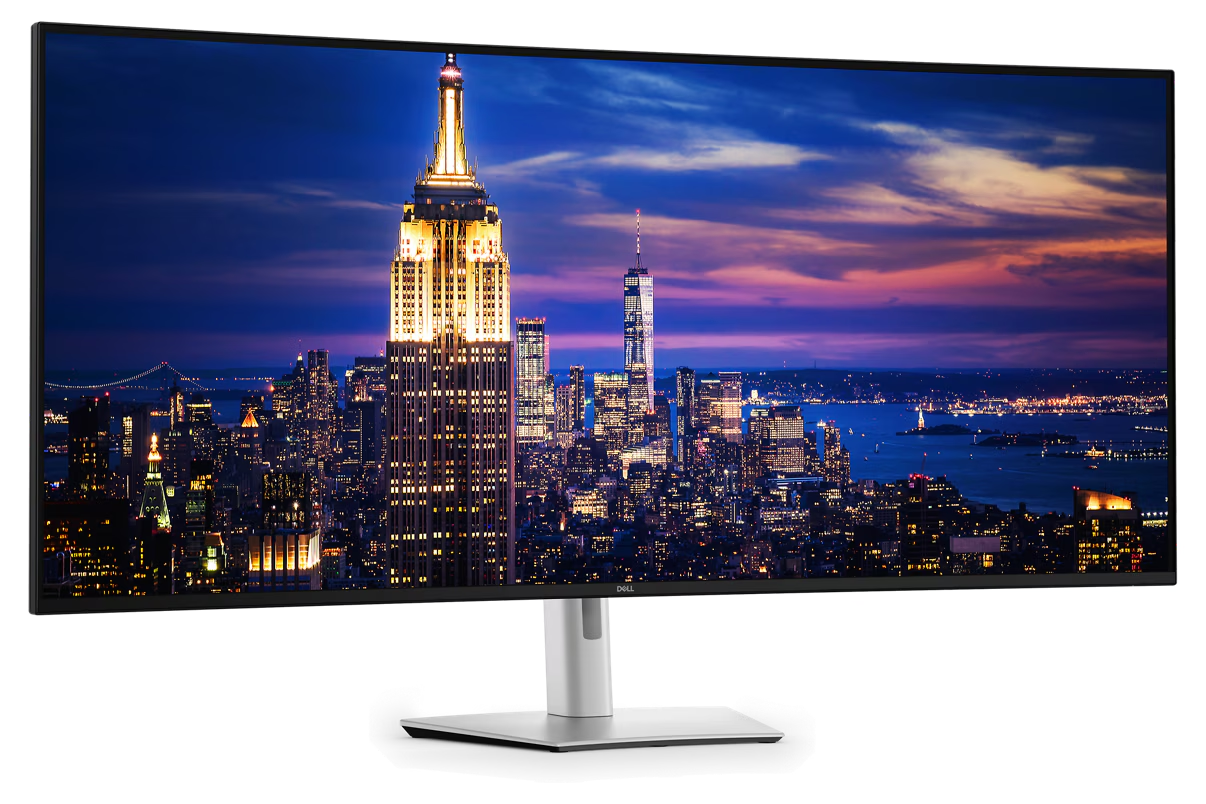
If you’ve ever tried to do serious multitasking on a normal dual-monitor setup and still felt cramped, the Dell UltraSharp 52 (U5226KW) is the type of screen that makes you stop fighting your workspace and start using it.
This is a beautiful ultrawide made for productivity: research, spreadsheets, timelines, dashboards, trading, editing, writing, and any workflow where you want multiple windows visible at the same time without the constant shuffle.
It’s not a gaming-first monitor, but it’s also not a sluggish office panel. In hands-on testing, the U5226KW set up fast, felt rock-solid on the desk, and delivered a premium “everything is smoother” experience thanks to 120Hz and Dell’s IPS Black panel tech.
If you do agentic coding (Cursor, Claude Code, Copilot-style workflows, multi-agent runs, etc.), this is basically the “mission control” monitor.
You can keep your main editor full-size in the center, park agent logs / tool output / terminal panes on one side, and keep docs, tickets, and a browser on the other—without turning everything into microscopic columns. The width lets you monitor agents continuously while still writing real code in a normal-width window.
Even better: the U5226KW isn’t just one giant canvas. The multi-input support + PbP/PiP makes it easy to treat the screen like multiple displays. Run a dev box, a laptop, and a test machine as separate inputs, then keep your keyboard/mouse workflow clean without constantly swapping cables. It’s ideal for anyone who needs to watch multiple systems at once—agents, builds, dashboards, staging environments—while keeping a primary “work” window front and center.
Gallery
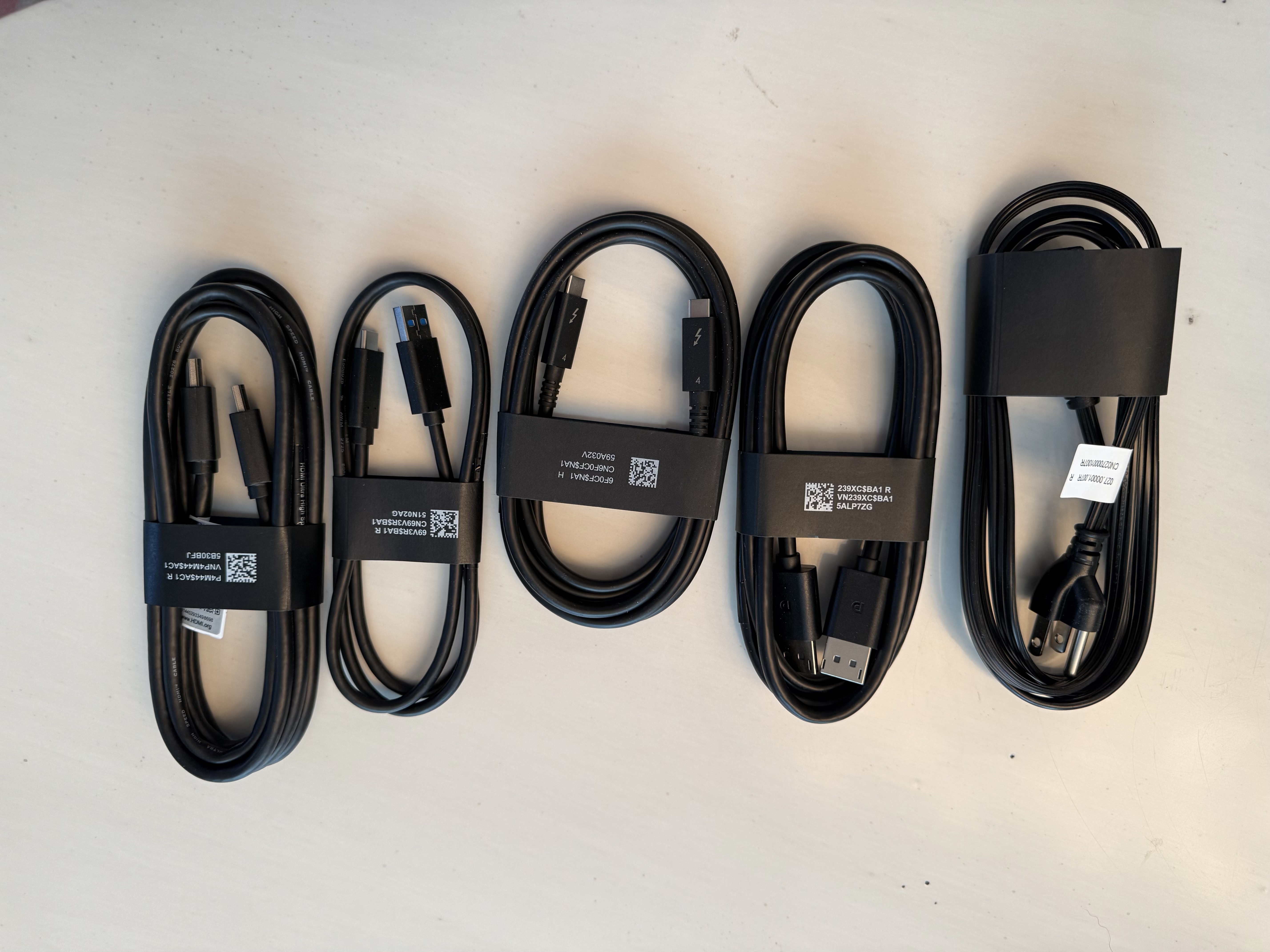
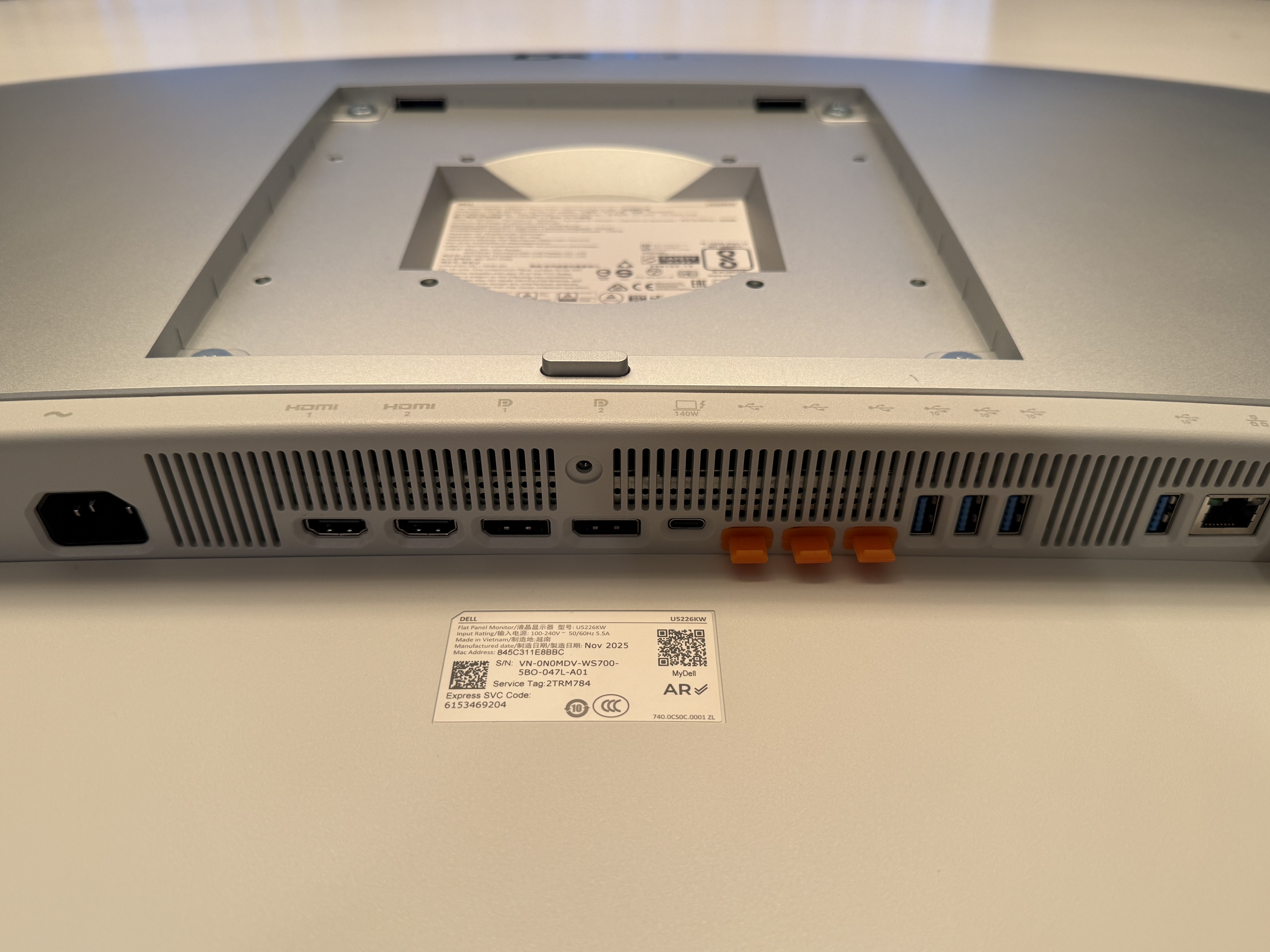
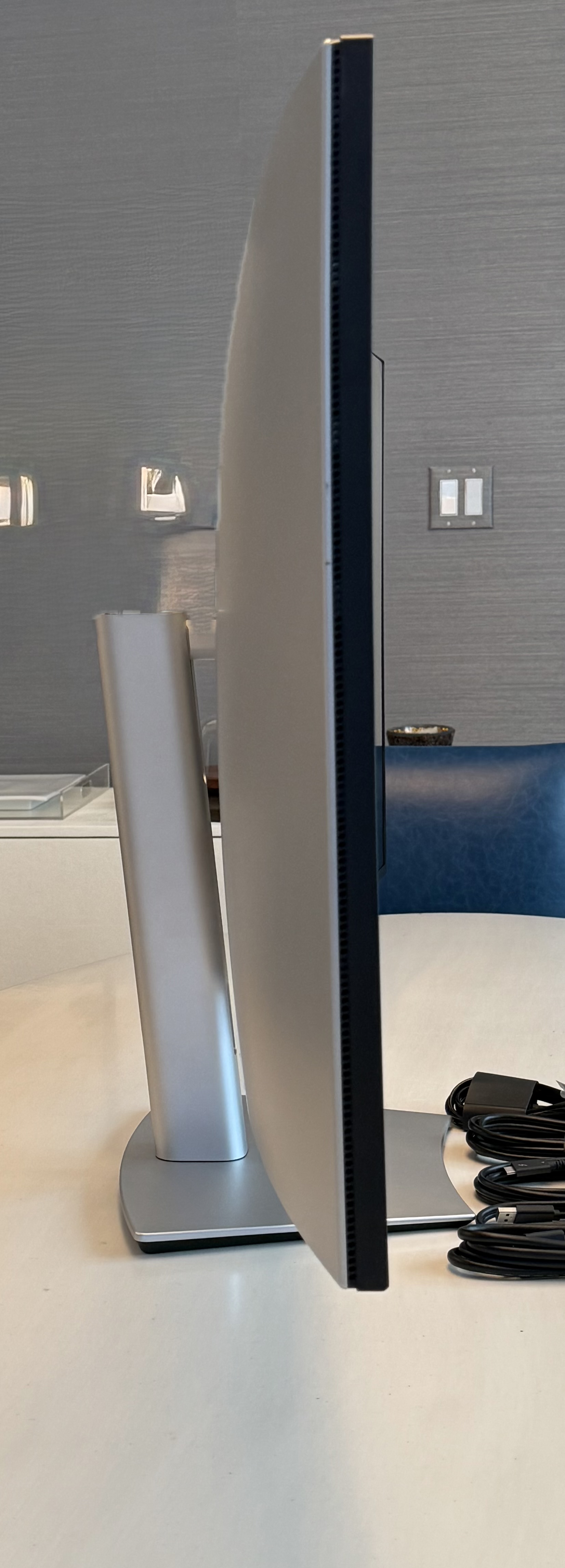
Hands-on first impressions: huge, premium, and surprisingly easy to live with
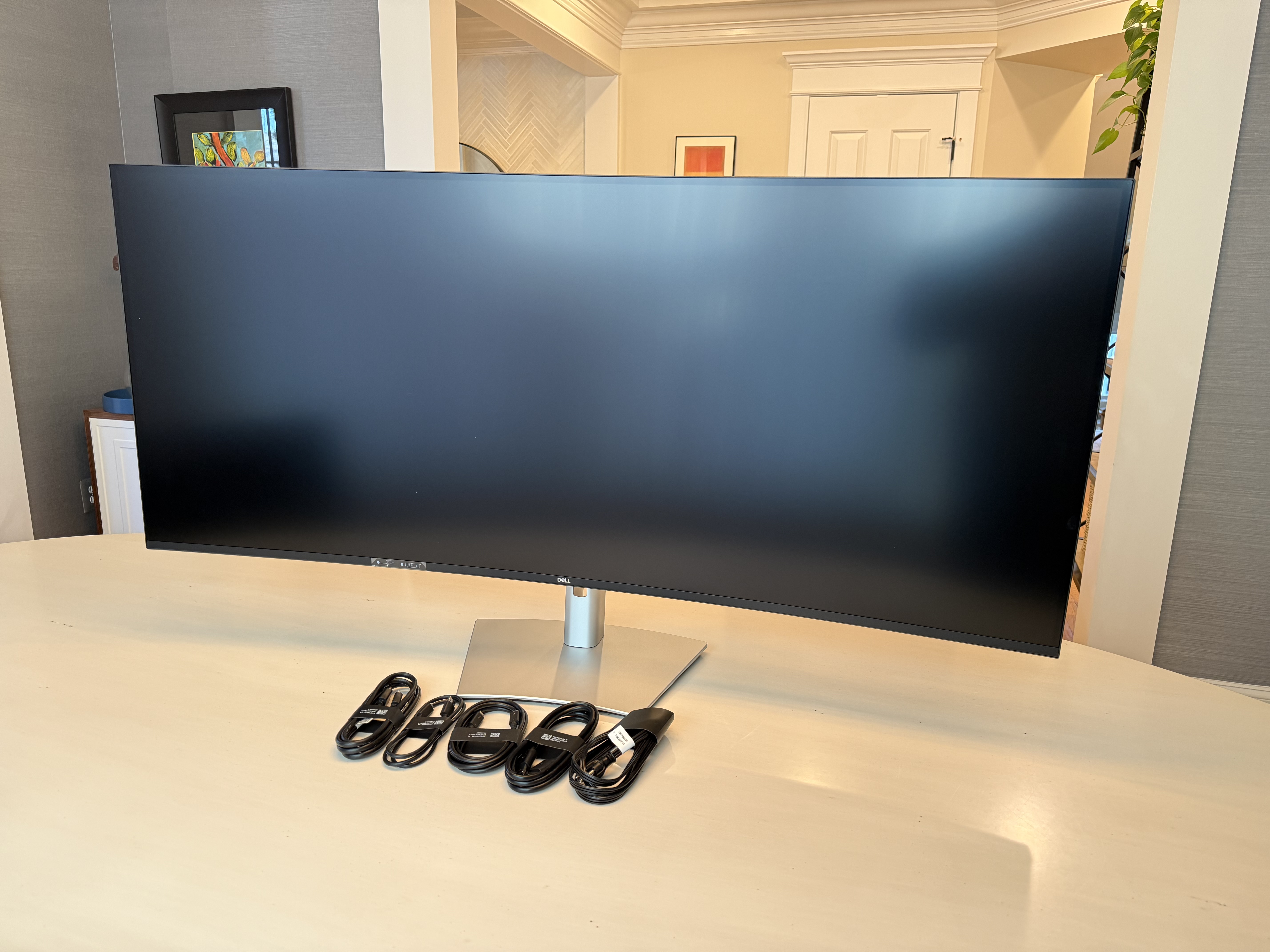
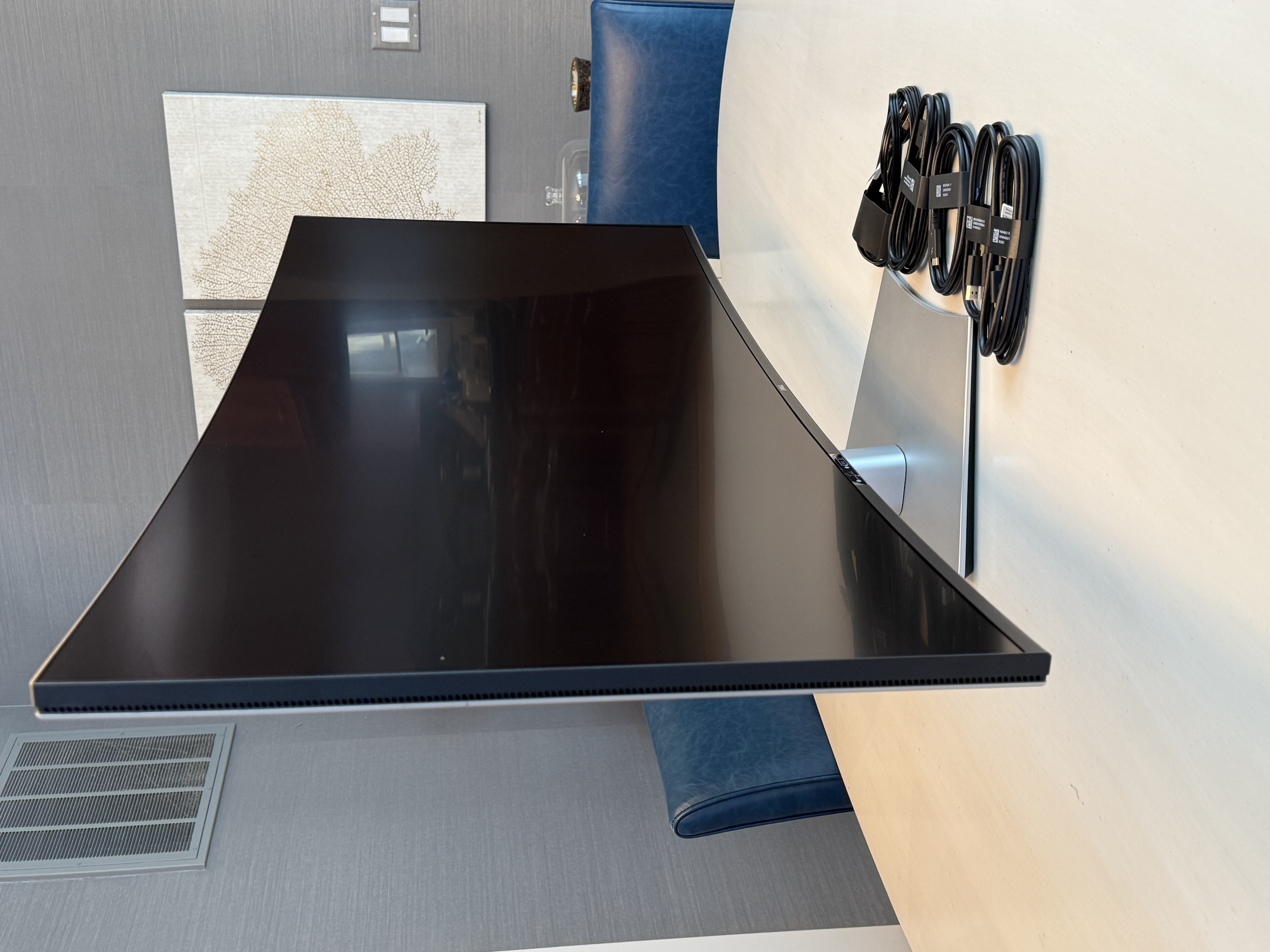
The first thing noticed is the build quality. This monitor feels like a professional tool: sturdy, stable, and finished like a flagship. The stand and chassis feel engineered for a display this large—no flimsy wobble, no “budget big-screen” vibe.
Setup is also refreshingly painless for something this enormous:
- Physical assembly is straightforward (no “mystery pieces”).
- Cable routing is clean and practical.
- Once connected, it behaves like a proper modern hub monitor: one clean connection can run a whole desk.
This matters because screens at this size can be incredible or they can be a daily annoyance. The U5226KW leans hard toward “daily-driver pro gear.”
The core experience: a single continuous workspace that changes how you work
A monitor this wide isn’t just about having more pixels. It changes the rhythm of work:
- A large central “main” app (Excel, EHR, IDE, editing timeline, trading platform)
- A reference window on the left (research, email, notes)
- A live communication feed on the right (Slack, Teams, chat)
- And still room for a browser or file manager without hiding anything
That’s the real win: less window management, more time actually doing the work.
The curve helps here. On massive flat screens, edges can feel far away. On the U5226KW, the curve keeps the corners usable, which makes multi-window layouts feel natural instead of stretched.
Image quality: bright, clean, and “noticeably good blacks” for an IPS-style panel
This monitor is designed for productivity, but it looks expensive doing it.
IPS Black makes a difference
Dell’s IPS Black approach isn’t OLED, but it’s a meaningful step up from typical IPS. In real use:
- Dark UI themes look richer and less washed out.
- Shadows and darker gradients look cleaner.
- Blacks look noticeably deeper than standard IPS office monitors.
For people who live in dark-mode apps all day, that matters. It reduces that “gray haze” feeling many IPS panels have in dim rooms.
120Hz makes everything feel premium
Even if gaming isn’t the goal, 120Hz upgrades daily life:
- Scrolling is smoother
- Window movement looks cleaner
- UI motion feels more “connected”
- Video playback looks more natural
A lot of productivity monitors still feel stuck in the past at 60Hz. This one does not.
Datacolor results: what the numbers say (and what they mean)
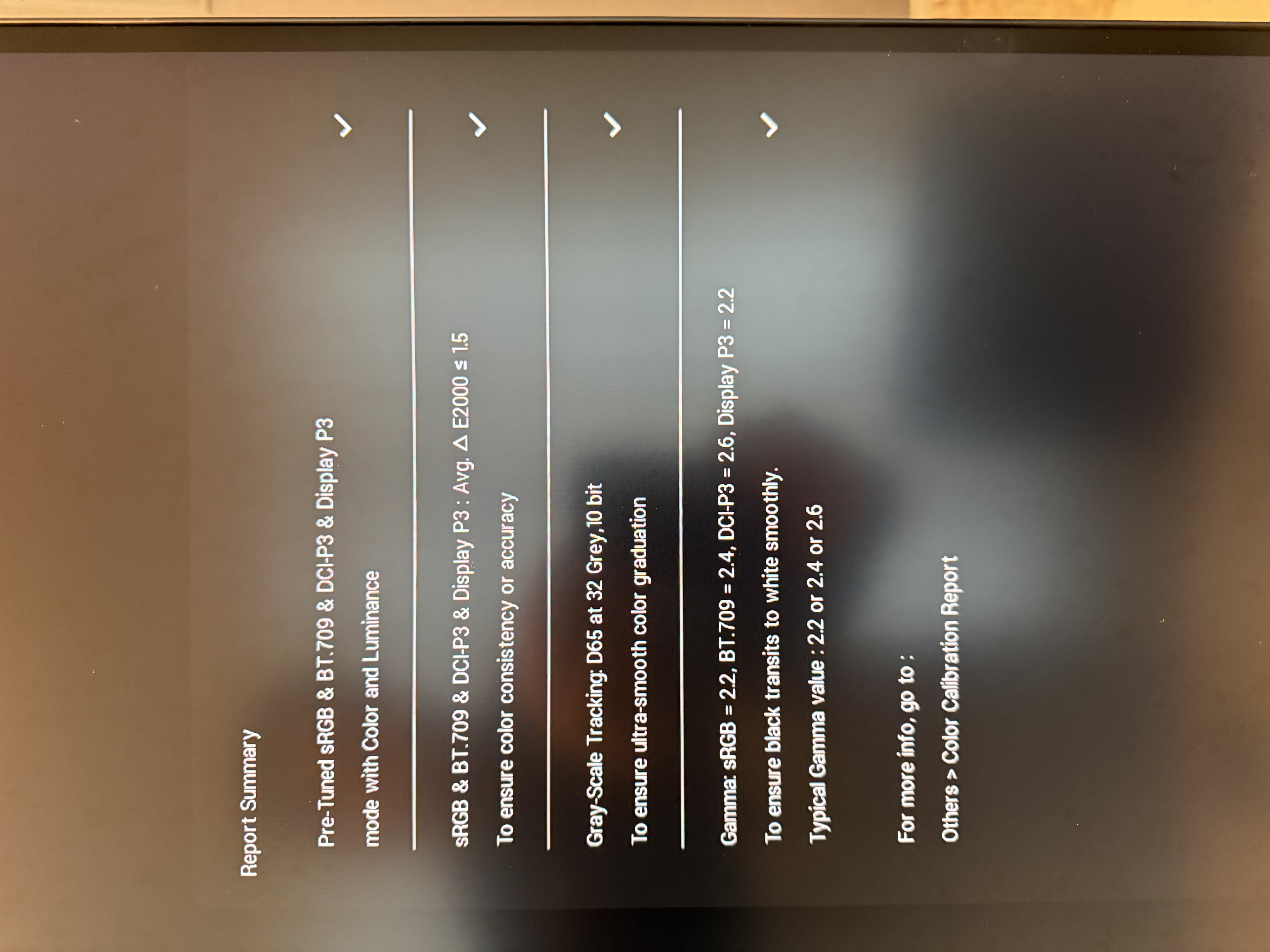
We ran Datacolor measurements for gamut, gamma, and color accuracy. Here’s the practical take.
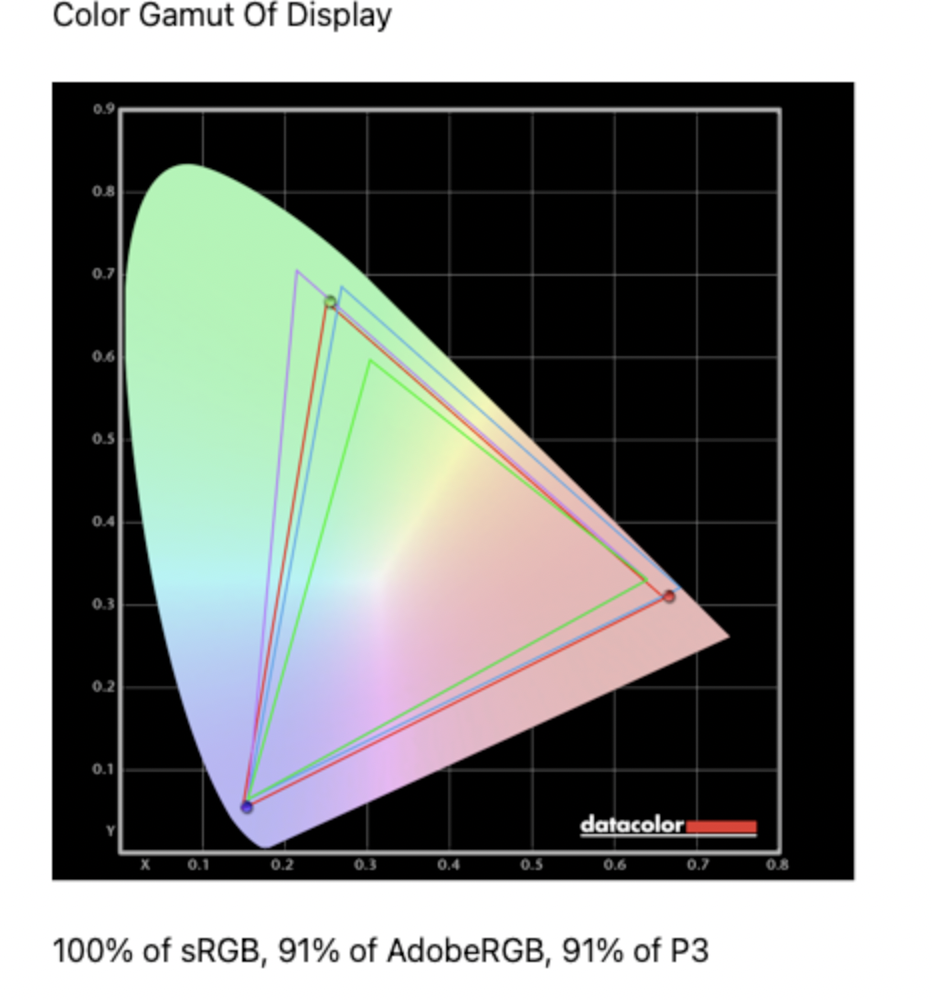
Color gamut coverage
- 100% sRGB
- 91% AdobeRGB
- 91% DCI-P3
Interpretation:
For web content, office work, and general creation, this is strong. Full sRGB means typical web graphics and everyday content are covered properly. Around 91% P3 means modern “wide color” content can look vibrant without looking cartoonish.
For print workflows that demand maximum AdobeRGB coverage, 91% is “good but not the absolute ceiling.” For most people doing mixed productivity + media + occasional creative work, it’s a very comfortable place to be.
Gamma / tone response
- Measured gamma: 2.2
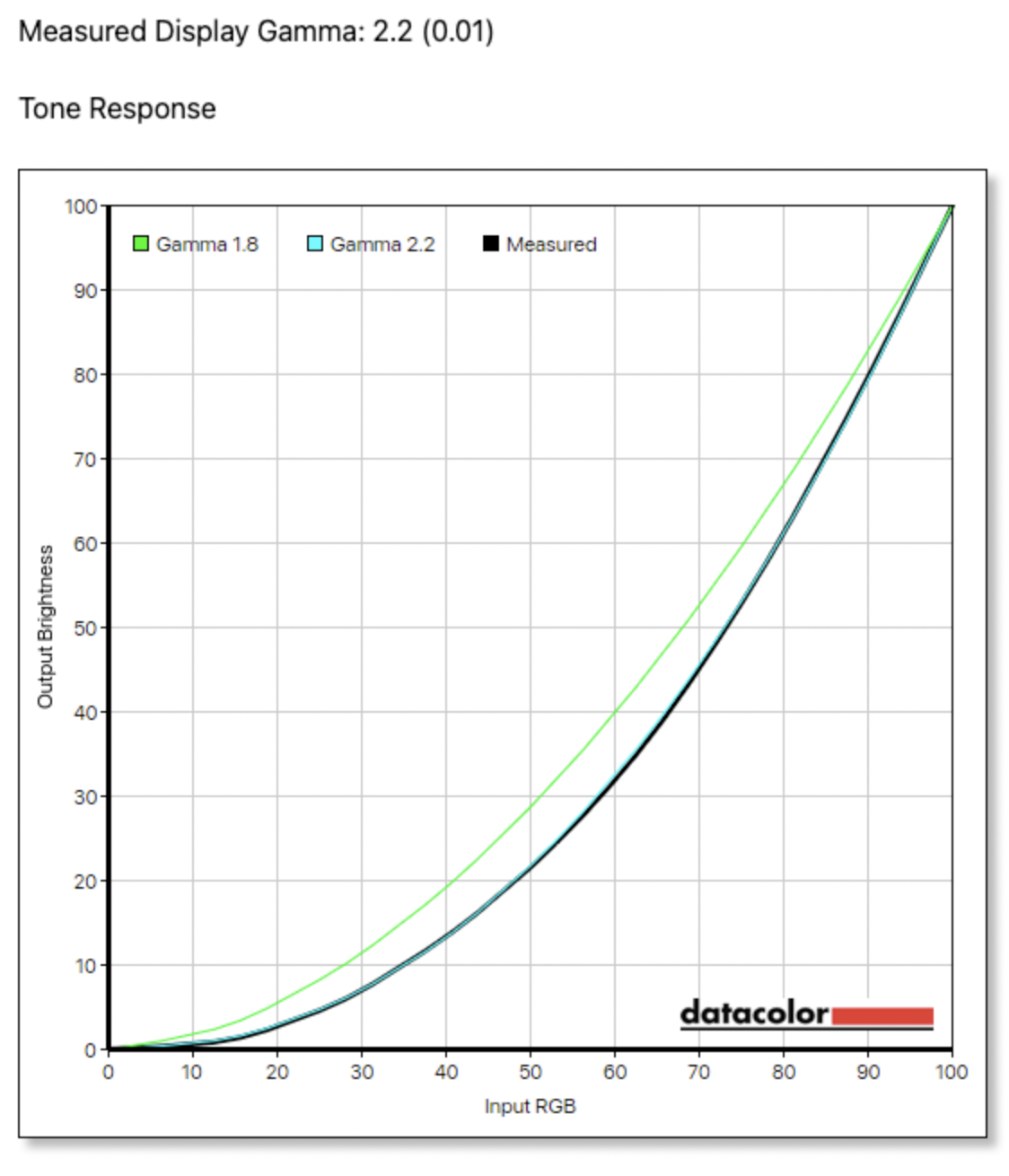
Interpretation:
This is what most people want for normal desktop use. It helps images look “right” in the midtones and prevents that washed-out look that can happen when gamma tracking is off.
Color accuracy (Delta E)
- Average Delta E: 2.81
- Max Delta E: 5.02
- Min Delta E: 1.68
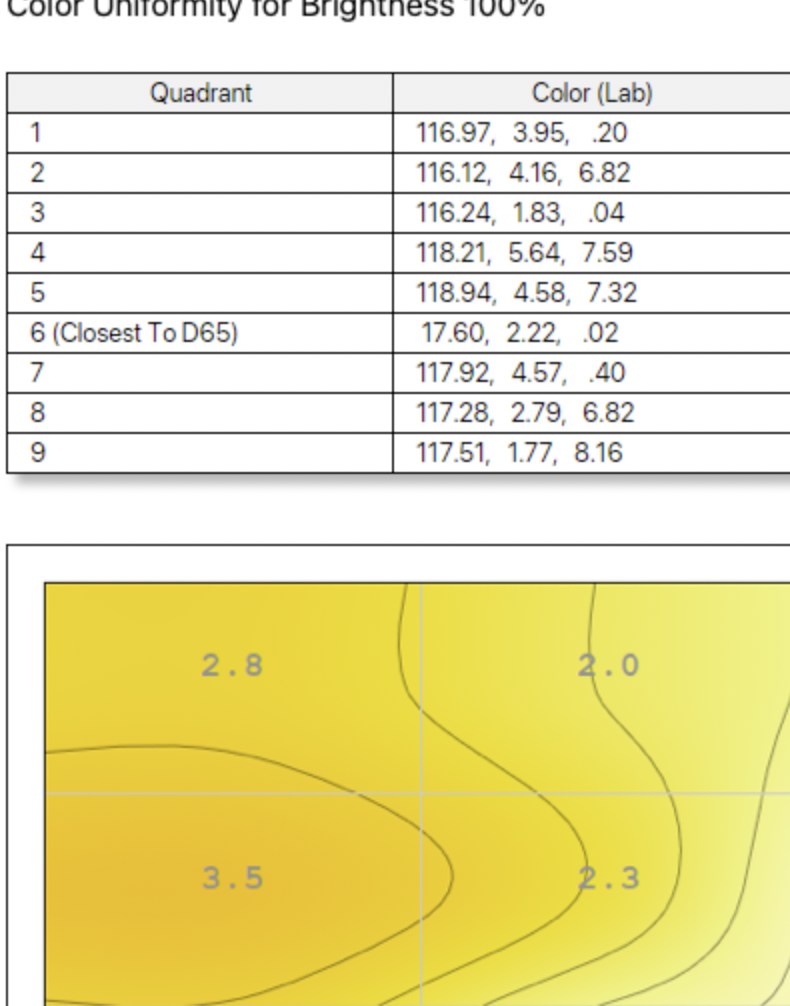
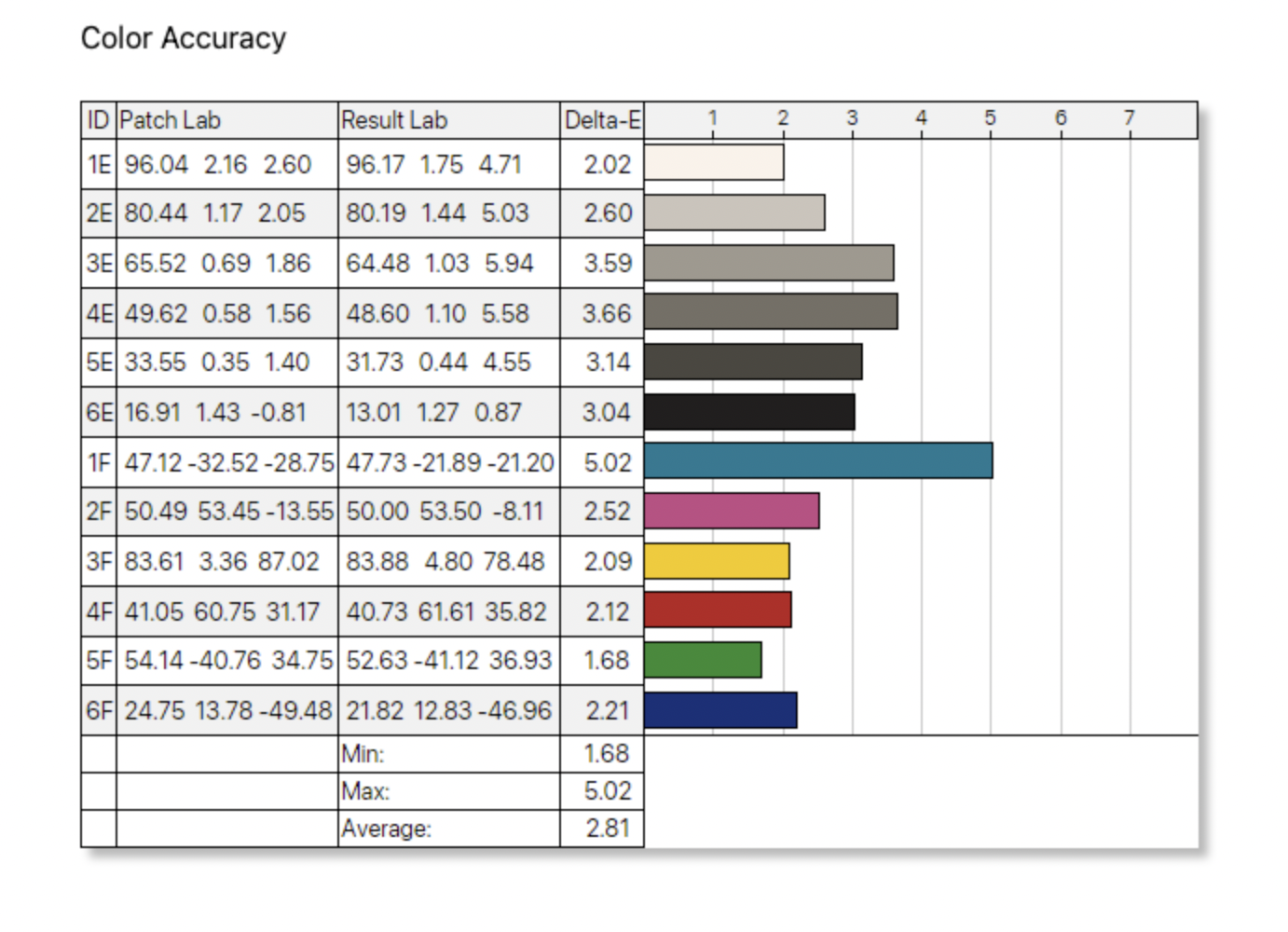
Interpretation:
Out of the box (or in the current profile), color accuracy is generally respectable for productivity and everyday media. If color-critical work is a major part of the job—client deliverables, strict brand color matching, print proofing—calibration is still recommended.
That said, for the monitor’s real mission (productivity + premium visuals), the results align with what the eyes see: bright, clean, and pleasing color with solid consistency.
Productivity superpowers: Thunderbolt hub, Ethernet, and a real multi-input setup
The U5226KW isn’t just a screen. It’s a desk simplifier.
One-cable laptop life (Thunderbolt hub)
A big part of the appeal is using the monitor as the dock. One cable can handle:
- Video
- Data
- Charging
- Peripherals
Dell positions this as a Thunderbolt hub monitor, and in practice it behaves like one. If the goal is a clean desk where a laptop drops in and instantly becomes a full workstation, this monitor is built for that.
Built-in Ethernet is the unsung hero
A surprising quality-of-life upgrade: wired networking directly through the monitor.
For laptop setups, this is huge. No extra dongles, no separate dock, no weird USB Ethernet adapters hanging off the side.
PbP / PiP that actually feels useful
Picture-by-Picture and Picture-in-Picture are common on paper but often awkward in real life. On a 52-inch ultrawide, it finally makes sense.
In hands-on use, PbP/PiP works great, and the ability to manage multiple inputs is one of the biggest reasons this screen exists. Dell advertises multi-input flexibility, and this monitor feels made for:
- Work laptop + personal desktop
- Desktop + mini PC
- Or multiple machines with one shared workspace
Up to four inputs can be managed in split workflows, which is exactly the kind of feature you only appreciate once you’ve lived with it.
It’s not a gaming monitor… but it’s better for games than most “office” ultrawides
Let’s keep it honest: this isn’t a competitive esports value pick. It’s huge, premium, and designed around connectivity, screen real estate, and comfort.
But if casual gaming is on the menu:
- 120Hz helps a lot with motion clarity
- The wide canvas is immersive
- Video and cinematic games look fantastic on a panel like this
This is the kind of monitor that makes games look “big and expensive,” even if the buyer didn’t choose it for gaming.
Comfort and ergonomics: the underrated part of a huge screen
A massive ultrawide can be tiring if the ergonomics are wrong. Here, the curve and the layout help.
A few practical tips that make this type of monitor shine:
- Give it real desk depth if possible (you want a comfortable viewing distance)
- Use it like a “three-zone” workspace: left / center / right
- Keep the highest-focus task in the center
- Use the sides for reference and communication
When set up correctly, it reduces head movement compared to a flat panel of the same width, and it feels more natural over long sessions.
Who this monitor is for
Buy it if:
- Work involves lots of simultaneous windows (spreadsheets, dashboards, docs, research)
- You want a clean one-cable workstation with a real hub built in
- You run multiple computers and want PbP/PiP to actually be useful
- You want a premium screen that looks excellent for video and daily use
- You care about smoothness and comfort and want 120Hz for non-gaming reasons
Skip it if:
- Competitive gaming is the main goal (check out our Best OLED Ultrawide Monitors guide instead)
- You want a “best value” ultrawide under a tight budget
- Your work demands the absolute highest wide-gamut coverage for print-proof workflows
Final verdict: a premium productivity monster that looks as good as it works
The Dell UltraSharp 52 (U5226KW) nails what a modern flagship productivity monitor should be:
- A beautiful, sturdy build that feels like pro equipment
- A huge curved canvas that makes multitasking feel effortless
- Surprisingly good blacks for an IPS-style panel (IPS Black helps)
- Strong color performance and a clean tone response
- A hub setup that genuinely simplifies the desk
- 120Hz that makes everything feel smooth and modern
If the goal is a true “command center” display—something that turns a desk into a workstation—this is one of the most compelling ultrawide productivity options Dell has ever built.
Pros:
- Massive 6K Ultrawide Workspace
- 120Hz IPS Black Panel
- Thunderbolt 4 Hub & Ethernet
- Excellent Build Quality
- Great Multi-Input Management
Cons:
- Expensive
- Takes up a lot of desk depth
- Not for competitive gaming
Specs
- Model: Dell UltraSharp 52 Thunderbolt Hub Monitor (U5226KW)
- Screen size: 51.5-inch class ultrawide
- Resolution: 6144 × 2560
- Refresh rate: Up to 120Hz
- Panel type: IPS Black
- Key features: Thunderbolt hub functionality, Ethernet, multi-input PbP/PiP, productivity-first design
- Product link: https://www.dell.com/en-us/shop/dell-ultrasharp-52-thunderbolt-hub-monitor-u5226kw/apd/210-bthw/monitors-monitor-accessories
About the Author

Eli Nolan
Eli Nolan is a seasoned tech enthusiast and gaming monitor specialist. With years of experience testing the latest display technologies, Eli provides deep insights into performance, color accuracy, and value. When not benchmarking monitors, he can be found exploring the latest open-world RPGs or fine-tuning his workstation setup.