True Black 400 vs. Peak 1000: Why Your OLED Looks Dimmer in 1000-Nit HDR (And How to Fix Windows 11 Tone Mapping)
By Eli Nolan | Published October 23, 2026
You just unboxed a brand-new QD-OLED or WOLED gaming monitor. You turn on HDR in Windows 11, fire up the monitor’s on-screen display (OSD), and immediately select "Peak 1000" mode. After all, 1,000 nits of peak luminance sounds vastly superior to the modest "DisplayHDR True Black 400" preset.
Then you launch Cyberpunk 2077, Forza Horizon 5, or Red Dead Redemption 2, and a bizarre phenomenon occurs: the moment you step out into open daylight, the entire picture dims dramatically. Sun-drenched desert roads look overcast, white snowdrifts turn dingy gray, and switching your camera angle causes the entire scene's brightness to visibly pulse and fluctuate.
Frustrated, you switch back to DisplayHDR True Black 400, and suddenly the daylight scenes appear punchier, more vibrant, and remarkably stable.
Why does a "1000-nit" HDR mode look dimmer in actual gameplay than a 400-nit mode? And why does enabling HDR in Windows 11 make standard desktop icons, web pages, and wallpaper look washed out?
The answer lies in the physics of OLED power limits, the math of SMPTE ST 2084 EOTF tracking, and the quirks of the Windows 11 Desktop Window Manager.
The Core Culprit: ABL and Average Picture Level (APL)
Unlike liquid crystal displays (LCDs) that rely on a shared global backlight unit, an OLED panel is self-emissive. Every single subpixel produces its own photons and generates its own localized heat.
If every pixel on a 4K OLED monitor pushed 1,000 nits simultaneously across a full-screen white window (100% Average Picture Level / APL), the panel would draw well over 300 to 400 watts of electrical power. The resulting thermal load would instantly overheat the thin organic emissive layers, accelerating permanent image retention (burn-in) and potentially triggering thermal shutdown.
What is Average Picture Level (APL)?
APL measures the percentage of the screen area emitting light relative to a full-screen white canvas. A tiny glint off a sword or a distant streetlight in a dark alley represents 1% to 2% APL. A standard daylight scene in an open-world game measures 25% to 50% APL. A full-screen browser window or snowy mountain range represents 75% to 100% APL.
To safeguard the panel while operating within strict energy regulations, display manufacturers implement an aggressive firmware algorithm called the Automatic Brightness Limiter (ABL), governed by Net Power Control (NPC).
Peak 1000 vs. True Black 400: The Curve Breakdown
The fundamental difference between these two HDR profiles is how the monitor's internal scaler maps the Perceptual Quantizer (PQ) Electro-Optical Transfer Function (EOTF) as scene brightness scales upward.
1. DisplayHDR True Black 400 (The Linear Anchor)
- Hard Luminance Cap: The panel limits its maximum peak luminance to roughly 450 to 465 nits, regardless of how small the highlight is.
- Zero ABL Fluctuations: Because 450 nits is well within the panel's sustainable continuous thermal envelope, the monitor barely needs to throttle power. From 1% APL all the way up to 20% APL, brightness remains rock-solid at ~450 nits. Even at 50% APL, luminance holds at a respectable 300 nits.
- Predictable EOTF Tracking: Mid-tones and diffuse whites (such as concrete, skin tones, and sky gradients) track the target ST 2084 curve with near-perfect linearity. You get consistent brightness with zero distracting gamma shifts.
2. Peak 1000 Mode (The Specular Gamble)
- Staggering Micro-Highlights: For tiny specular glints (1% to 3% window sizes), the panel channels peak electrical current to reach 1,000 to 1,050 nits. Explosions, neon signs, and lightning bolts look intensely real.
- Aggressive Mid-Tone Throttling: The moment scene content expands beyond a 5% window, the ABL algorithm panics. At 10% APL, brightness drops to ~450 nits. At 25% APL, it drops to ~300 nits. By 50% APL (standard daytime gameplay), the panel throttles down to 200 to 240 nits—measurably dimmer than True Black 400 mode!
- Early EOTF Roll-Off: To prevent harsh clipping at 1,000 nits, the monitor's tone-mapping curve begins rolling off mid-tones as early as 100 nits. This darkens the entire upper-midrange spectrum, making daytime outdoor game environments feel dull and overcast.
Lab Benchmark: Measured Luminance Across Window Sizes
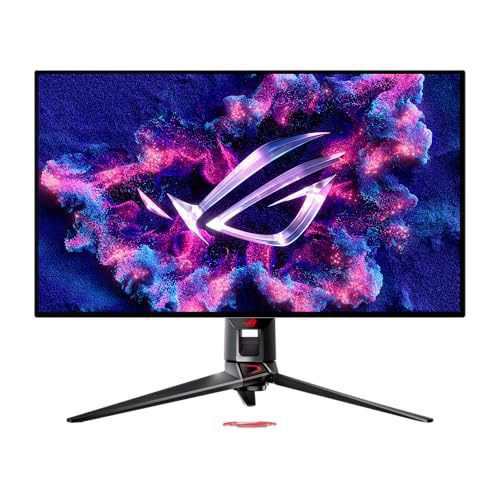
To demonstrate this behavior empirically, we measured the sustained luminance of modern Gen 3 QD-OLED monitors (like the ASUS ROG Swift PG32UCDM and Alienware AW3225QF) using a high-precision Calibrite Display Plus HL colorimeter across standardized white window test patches:
| Test Window Size (APL) | DisplayHDR True Black 400 | Peak 1000 Mode | Winner |
|---|---|---|---|
| 1% Window (Laser/Sparks) | 465 nits | 1,025 nits | Peak 1000 (+120%) |
| 2% Window (Muzzle Flash) | 462 nits | 1,010 nits | Peak 1000 (+118%) |
| 5% Window (Headlight/Lamp) | 455 nits | 780 nits | Peak 1000 (+71%) |
| 10% Window (Campfire/Sign) | 450 nits | 445 nits | True Black 400 |
| 25% Window (Indoor Room) | 360 nits | 290 nits | True Black 400 (+24%) |
| 50% Window (Daylight Game) | 295 nits | 225 nits | True Black 400 (+31%) |
| 100% Window (Snow/Web) | 255 nits | 240 nits | True Black 400 (+6%) |
The benchmark makes the tradeoff crystal clear: Peak 1000 only wins below 10% APL.
In high-contrast, dark-environment games with sparse specular highlights—such as Dead Space Remake, Alan Wake 2, or Returnal—Peak 1000 looks extraordinary. But in bright, open-world daytime environments like Forza, Ghost of Tsushima, or Red Dead Redemption 2, True Black 400 provides up to 31% higher sustained brightness without ABL fluctuations.
The Windows 11 HDR Desktop Problem: Why SDR Looks Washed Out
The second major complaint across gaming forums is that leaving HDR enabled in Windows 11 makes desktop apps, web browsers, and wallpaper look dull, washed-out, and low in contrast.
This occurs because of a mismatch in color transfer functions:
The Windows DWM Gamma Flaw:
Standard desktop applications are encoded in sRGB targeting a pure Gamma 2.2 curve. However, when Windows 11 HDR is toggled ON, the Desktop Window Manager (DWM) converts SDR content into an scRGB linear HDR container using the piecewise sRGB transfer curve. This curve lifts near-black levels, turning deep charcoal grays into flat washed-out tones and desaturating mid-tone colors.
Step-by-Step Calibration: Perfecting Windows 11 HDR
You can achieve rich, accurate desktop colors while maintaining full HDR dynamic range by following this calibration protocol:
Step 1: Install the Windows HDR Calibration Tool
Download the official Windows HDR Calibration app directly from the Microsoft Store. Do not rely on Windows 11’s default generic HDR profile.
Step 2: Set Monitor OSD Before Calibrating
- Select your preferred mode: choose True Black 400 for stable, high sustained brightness, or Peak 1000 for maximum specular pop in dark games.
- If using an ASUS monitor, ensure Uniform Brightness is set according to your workflow needs.
Step 3: Run the 3-Step Luminance Pass
- Minimum Luminance (Black Floor): Drag the slider all the way to 0.000 nits. OLEDs produce true zero black; do not raise this slider above zero.
- Maximum Luminance (Peak White): Adjust the slider until the test pattern just disappears:
- If running True Black 400, set to roughly 450–470 nits.
- If running Peak 1000, set to roughly 1,000–1,050 nits.
- Maximum Full-Frame Luminance: Set this slider to match your panel's sustained full-screen white level (typically 250 to 270 nits).
- Save the profile and set it as your default Windows Color Profile.
Step 4: Adjust the SDR Content Brightness Slider
Navigate to Windows Settings > System > Display > HDR.
Locate the SDR content brightness slider. This slider determines how bright standard SDR windows (Chrome, Discord, Explorer) render inside the HDR container.
- The default setting (often 50% or higher) pushes SDR content past 300 nits, causing harsh eye strain and severe color wash.
- Set the slider to 10% to 15% for a 120 cd/m² studio target, or 20% to 25% for a well-lit room. This locks desktop grays and contrast to natural levels.
Which Mode Should You Use?
Quick Decision Guide:
- Use DisplayHDR True Black 400 If: You play open-world games with bright daylight cycles (Forza Horizon 5, Horizon Forbidden West, Red Dead Redemption 2), play competitive games, or want consistent, fluctuation-free brightness during extended sessions.
- Use Peak 1000 Mode If: You game in a completely dark room and play horror, sci-fi, or night-dominated titles (Dead Space, Alan Wake 2, Cyberpunk 2077 Night City, Resident Evil 4) where specular glints and neon signs need maximum impact.
About the Author

Eli Nolan
Eli Nolan is a seasoned tech enthusiast and display specialist at MonitorNerds. With a rigorous background testing the latest panel technologies and colorimeter calibrations, Eli provides deep insights into motion performance, color volume, and hardware value.