The One-Cable Command Center: Best Developer Monitors with Built-In KVM & Thunderbolt
By Eli Nolan | Published September 3, 2026
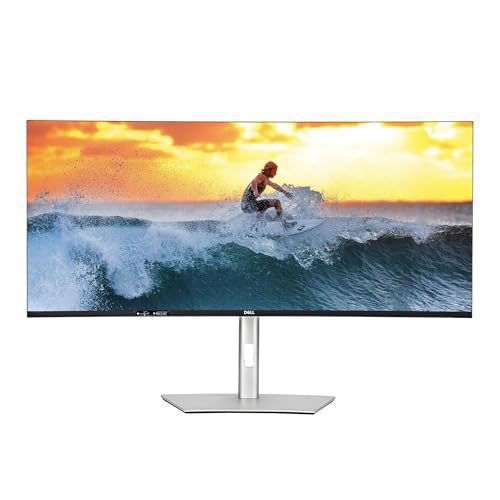
As software developers, quantitative analysts, and remote professionals reset their home offices for Q4, eliminating desk clutter becomes a primary goal. Managing a personal workstation alongside a company-issued laptop often leads to a mess of dongles, external docking stations, and duplicated peripherals.
In 2026, you no longer need a bulky external dock to maintain a clean workstation. Modern developer displays feature high-wattage Thunderbolt 4 / USB-C hubs and built-in KVM (Keyboard, Video, Mouse) switches. With a single cable, you can power your laptop, transmit high-resolution video, connect high-speed peripherals, and output wired internet, all while maintaining perfect text legibility for keeping Google Antigravity Python scripts open alongside dense documentation.
For specialized vertical coding displays, read our review of the BenQ RD280UG (3:2 Aspect Ratio).
What to Look for in a Developer Monitor Hub
- High-Wattage Power Delivery (90W+): Ensures demanding developer laptops (like MacBook Pros or Dell XPS 15s) stay fully charged during heavy compilation tasks.
- Built-In KVM Switch: Allows you to connect a single keyboard and mouse to the monitor and seamlessly toggle control between two connected computers (e.g. Work Mac and Personal PC).
- Text Clarity & Panel Quality: Technologies like IPS Black double static contrast ratios to 2000:1, delivering sharper text and reducing eye strain during long coding sessions.
Here are the two standout one-cable developer monitors for Fall 2026.
Dell UltraSharp U2724DE: The Workstation Gold Standard
The Dell UltraSharp U2724DE is widely recognized as the gold standard for home office productivity, offering exceptional connectivity and superior IPS Black panel contrast.
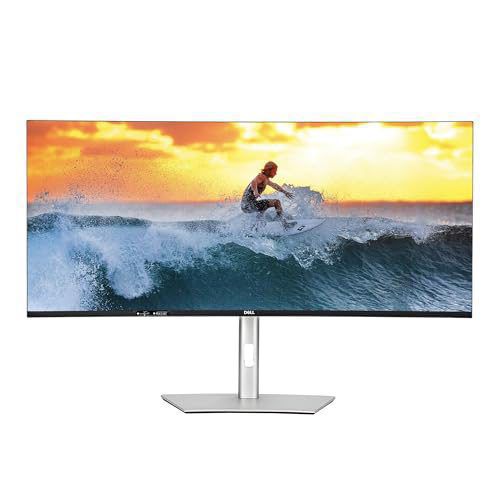
- Panel & Resolution: 27-inch QHD (2560 x 1440) IPS Black panel with a 2000:1 contrast ratio and smooth 120Hz refresh rate.
- Thunderbolt 4 Hub: Delivers up to 90W USB-C Power Delivery, DisplayPort 1.4 output for daisy-chaining a second monitor, and 10Gbps high-speed USB data ports.
- Networking & KVM: Integrated 2.5GbE RJ45 Ethernet port and auto-KVM functionality for seamless dual-system control.
- Eye Care: TUV Rheinland 5-star certified ComfortView Plus hardware low blue light filtering.
The U2724DE acts as a complete docking station. Plugging one Thunderbolt cable into your laptop instantly connects your wired network, keyboard, mouse, and external storage while keeping your desk entirely free of extra power bricks.
HP Series 7 Pro 34-Inch (734pm): The Ultrawide Conferencing Powerhouse
If you want to replace a messy dual-monitor arm setup with a single curved ultrawide canvas, the HP Series 7 Pro 34-Inch WQHD (734pm) is built for high-end professional workflows.
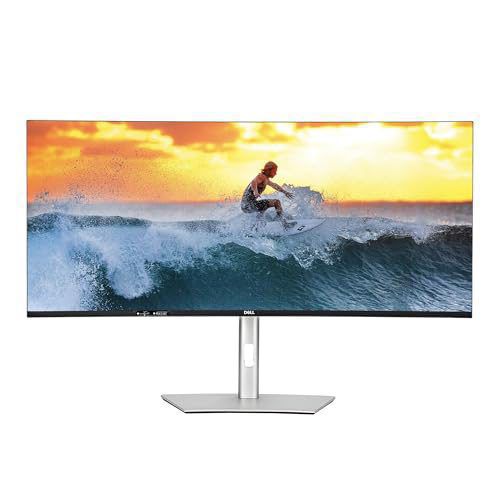
- Panel & Resolution: 34-inch WQHD (3440 x 1440) 120Hz IPS Black curved screen with a 2000:1 contrast ratio.
- Thunderbolt 4 & KVM: Single-cable Thunderbolt 4 with 100W Power Delivery and integrated KVM switch.
- Built-in Conferencing: Pop-up 5MP AI tilt camera, dual noise-canceling microphones, and quad integrated speakers.
- Screen Real Estate: Provides 33% more horizontal workspace than a standard widescreen, allowing you to tile three full-height code files side by side.
For developers who spend significant time in video meetings while managing multi-window development environments, the HP 734pm combines conferencing hardware and massive workspace into a single sleek enclosure. To see how ultrawide hubs perform, check out our review of the flagship Dell UltraSharp U4025QW.
Summary Recommendation
- Choose the Dell UltraSharp U2724DE if you want the classic 27-inch dual-system hub with 2.5GbE Ethernet and 120Hz IPS Black text sharpness.
- Choose the HP Series 7 Pro 34-Inch (734pm) if you want an all-in-one ultrawide conferencing hub that replaces dual monitors and external webcams.
About the Author

Eli Nolan
Eli Nolan is a seasoned tech enthusiast and gaming monitor specialist. With years of experience testing the latest display technologies, Eli provides deep insights into performance, color accuracy, and value. When not benchmarking monitors, he can be found exploring the latest open-world RPGs or fine-tuning his workstation setup.